Plex Parental Controls for Kids: The 2026 Setup Guide
Plex can be made safer for children with free Managed Users, rating profiles, selected libraries, PINs, and online-media controls. The important part is knowing what each control does — and the gaps it does not cover.
The short answer: Start with a separate Plex Managed User for each child, share only the libraries they need, choose the closest preset rating profile, protect adult profiles with a PIN, and review every Online Media Source. That setup is free. Plex Pass is needed for custom rating and label restrictions, not for the basic child profiles.
If your child is comfortable with the regular Plex interface, the native setup may be enough. If you want a smaller child-facing library, manual movie-and-show assignment, or access to a server someone else shared with your Plex account, a child-focused client such as VidCove for Plex is the other practical route.
What Plex parental controls actually include
Plex's child controls are more capable than many older guides suggest. According to Plex's current documentation, a free Plex Home can include up to 14 Managed Users. Each child can have different library access and one of three preset restriction profiles:
- Younger Kid: permits ratings such as TV-Y, TV-G, and G.
- Older Kid: adds ratings such as TV-PG and PG.
- Teen: adds ratings such as TV-14 and PG-13.
Those profiles affect personal Movie and TV libraries and Plex's on-demand Movies & Shows catalog. They do not apply to Live TV. Plex Pass adds advanced rules based on selected ratings and custom labels; labels can be used as a title allow-list when you want tighter control than a rating ceiling.
One common warning is now outdated: Plex says the Discover source is not available to Managed Users. The real setup risks are broader library access than intended, inaccurate or missing ratings, online Movies & Shows or Live TV left enabled, downloaded media on a shared device, and an adult profile without a PIN.
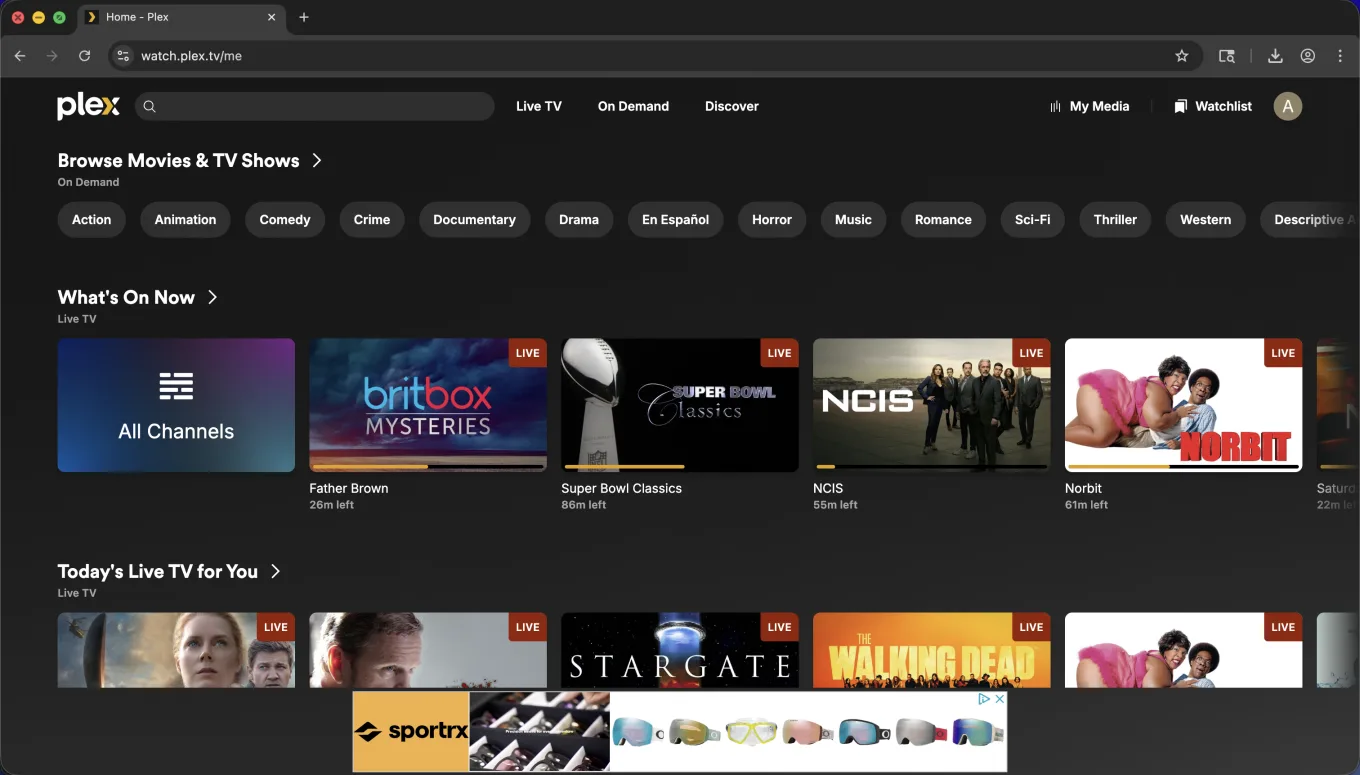
An administrator account can show Plex's online sources. Discover itself is unavailable to Managed Users; review the other sources separately.
How to set up Plex for kids
1. Create a Managed User for each child
In Plex Web, open Settings → Plex Home and add a Managed User. A managed profile does not need its own email address or password and cannot sign in directly; a regular Home member signs in first, then switches to it. Plex also lets you create a Managed User from the user switcher in supported web, TV, and mobile apps.
Choose the closest preset profile, then grant only the personal libraries that child should use. Plex documents these basic Managed Users, selected libraries, and preset profiles as free features. See Plex's official Managed Accounts and Parental Controls guides.
2. Separate libraries by audience
A dedicated “Kids Movies” or “Family TV” library is easy to reason about and does not depend entirely on metadata. Share only those libraries with the child's profile. This is especially useful when unrated home videos, specials, or old metadata do not map neatly to Plex's preset profiles.
3. Add custom rating or label rules if you have Plex Pass
For finer control, set the Managed User's restriction profile to None, then configure allowed or excluded ratings and labels. Plex requires an active Plex Pass on the server admin account for these custom restrictions.
A practical allow-list pattern is to label approved titles — for example, kid-approved — and permit only that label. This gives you title-level control inside Plex, but it remains a manual metadata workflow. Plex explains the available rules in Restrictions on Library Access.
4. Put a PIN on every adult profile
Without a PIN, a child using Fast User Switching can open another Home member's profile. Protect the administrator and other adult profiles, then test switching from the child's device. Plex explicitly says its four-digit PIN is a convenience for account switching, not strong account security, so keep the main account password private too.
5. Review every Online Media Source
Open Account → Online Media Sources as the administrator. For Movies & Shows and Live TV, select Disabled for Managed Users if you want a personal-library-only experience. Preset rating profiles apply to Plex's on-demand Movies & Shows, but they do not restrict Live TV. Do not rely on simply unpinning a source; disabling it is the stronger control.
6. Test the exact devices your child will use
Open the child's profile on each TV, tablet, or browser. Confirm the allowed libraries, search results, profile switcher, online sources, playback, and post-play screens. If the child watches away from home, also test remote playback: since April 29, 2025, affected Plex apps require a server-admin Plex Pass, a viewer Plex Pass, or a viewer Remote Watch Pass for remote personal-video playback. Plex Remote Access must still work, and Plex documents a 2 Mbps maximum for Relay streams.
- Only the intended personal libraries appear.
- Adult profiles prompt for a PIN.
- Movies & Shows and Live TV match your policy.
- Search cannot reveal personal-library titles outside the profile's access.
- Playback works both at home and, if needed, away from home.
Plex says downloaded items have no per-user ownership on a shared device. Managed users can see, play, and manage media another user already downloaded, even when that title would be blocked by their normal restrictions. Clear adult downloads from shared devices before handing one to a child. Downloads also require Plex Pass and are available on a narrower set of apps than streaming.
Which Plex-for-kids setup should you choose?
Use native Plex with preset profiles
Best for: Families who can separate libraries cleanly, are comfortable with rating-based rules, and have children who can navigate the standard Plex interface.
Cost: Managed Users, selected libraries, preset profiles, and profile PINs are available without Plex Pass.
Add Plex Pass labels for an allow-list
Best for: Plex server owners who want title-level rules while keeping the native Plex apps and are willing to maintain labels.
Tradeoff: The setup lives in Plex's library-access and metadata tools. Plex also documents that Managed Users can receive shares only from the Home admin when that admin also owns the server.
Use VidCove as the child-facing library
Best for: Parents who want to assign specific movies or complete TV shows per child, combine approved Plex and YouTube content, or curate from both owned and shared Plex servers through one parent dashboard.
Tradeoff: VidCove is an additional client and account. The Free plan includes three assigned Plex movies or series; Premium removes that limit and adds movie collections and advanced activity features. Plex's own server, network, and remote-playback requirements still apply.
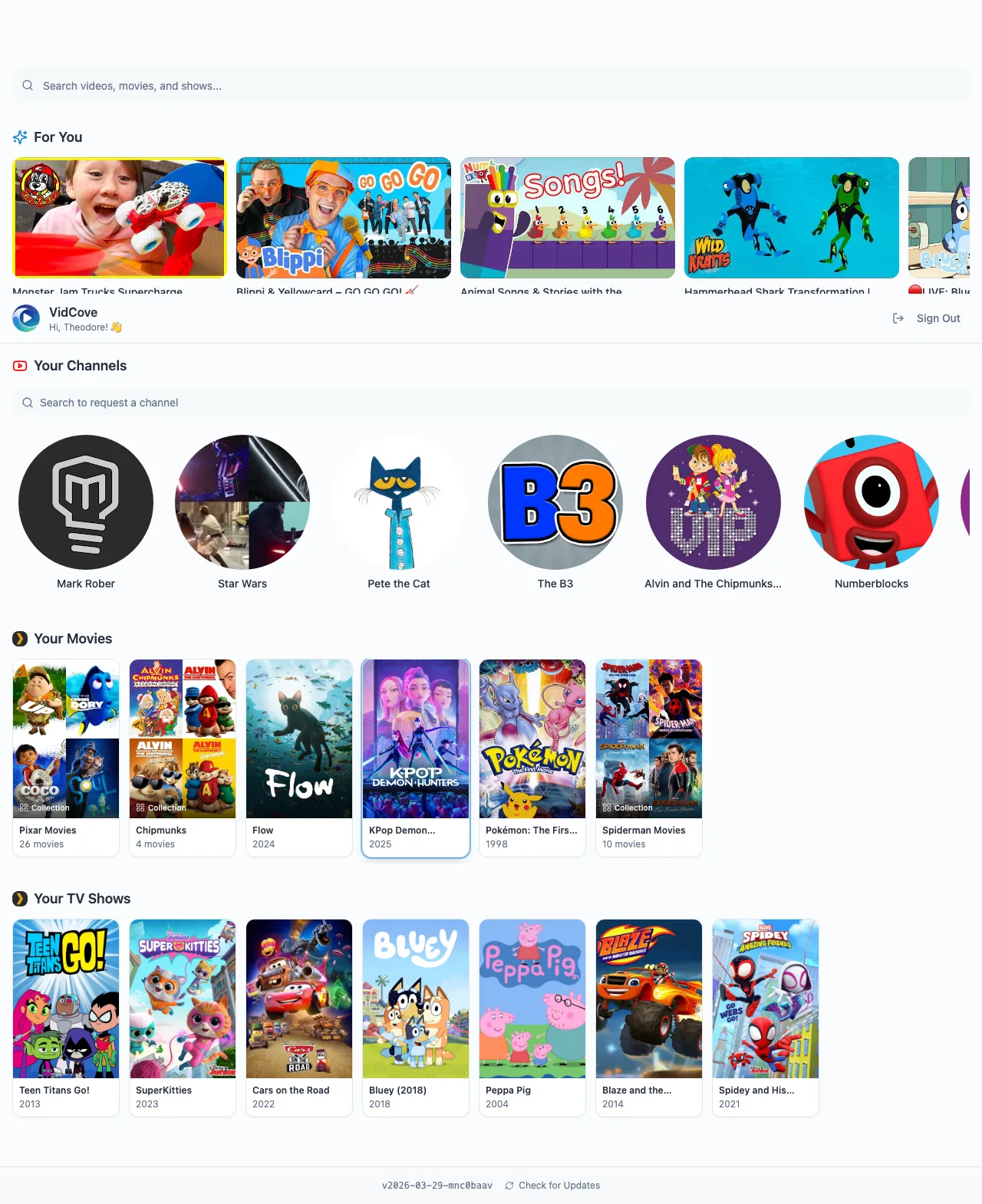
VidCove's child view limits browsing and search to media already assigned to that child.
How VidCove works with Plex
- Connect with Plex sign-in. VidCove discovers the owned and shared servers available to the parent's Plex account.
- Assign movies and complete TV shows. Each child gets a separate list selected by the parent. Assigning a show lets the child browse its seasons and episodes.
- Authorize every child playback request. A signed child session must be allowed to access the assigned Plex item before VidCove returns short-lived playback data. The app then selects a reachable Plex connection on the device; it does not promise to hide the Plex server address from that device.
- Adapt playback to the device. Depending on the client and media format, VidCove and Plex may use Direct Play, Direct Stream, or transcoding. Actual server load depends on the file, device, subtitles, bandwidth, and Plex settings.
- Build Premium movie collections. Parents can arrange approved movies into child-specific collections such as “Movie Night.”
- Review activity. Watch activity is available in the parent experience; Premium adds analytics, AI insights, and weekly email digests across Plex and YouTube.
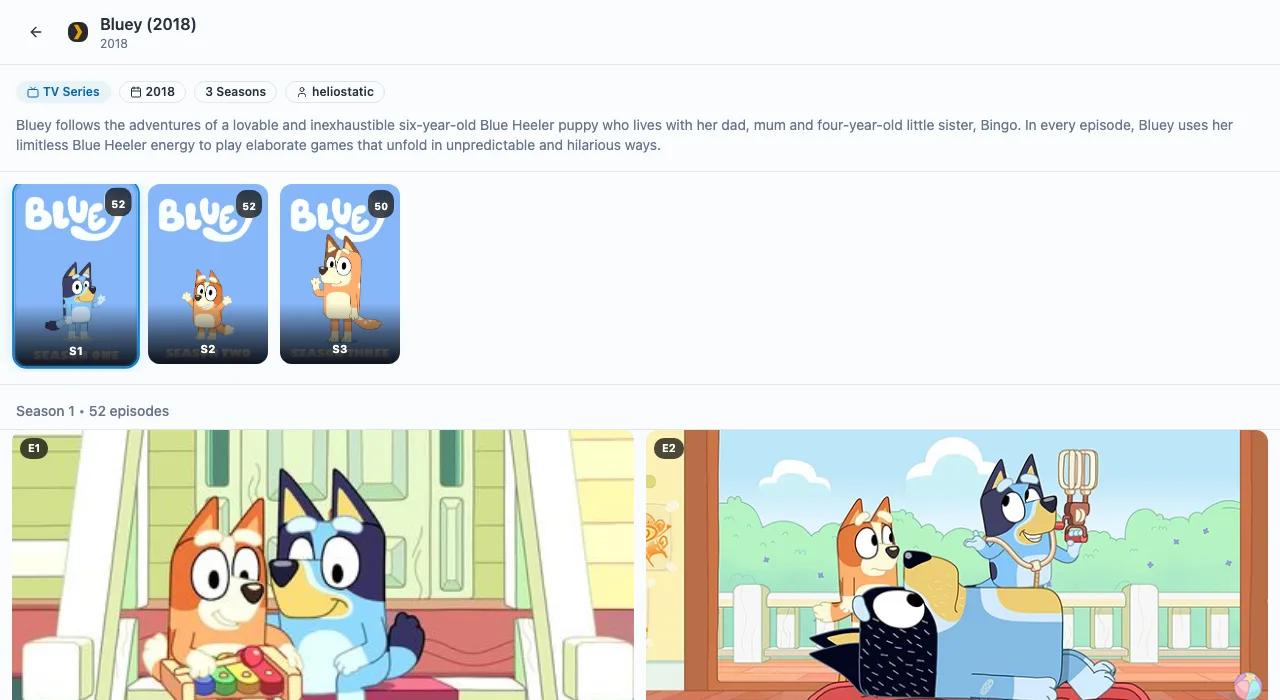
Plex native vs. VidCove with Plex
| Decision point | Plex native | VidCove + Plex |
|---|---|---|
| Basic child controls | Free Managed Users, selected libraries, preset rating profiles, profile PINs | Separate child profiles with manually assigned movies and complete TV shows |
| Title-level control | Custom labels with Plex Pass; requires metadata setup | Parent selects titles directly; three Plex items on Free, unlimited on Premium |
| Shared servers | Managed Users cannot inherit an outside server shared with the Home admin | Parent can assign from owned or shared servers available to their Plex account |
| Child interface | Standard Plex app and navigation | Assigned Plex and approved YouTube media in a smaller child-facing library |
| Online sources | Discover unavailable to Managed Users; Movies & Shows and Live TV can be disabled | Plex's online catalog and Live TV are not part of the VidCove child library |
| Activity | Watched state per user; detailed server play history is a Plex Pass Dashboard feature | Watch activity included; Premium adds analytics, AI insights, and weekly digests |
| Offline downloads | Plex Pass feature; restrictions do not apply to existing downloads on a shared device | No offline Plex-download claim; streams from the connected server |
| Best fit | Families happy with Plex's interface and admin workflow | Families prioritizing manual per-child assignment and one Plex + YouTube library |
Common questions from Plex parents
Are Plex parental controls free?
The basics are. Free Plex accounts can create Managed Users, choose personal libraries, apply Younger Kid, Older Kid, or Teen profiles, and use PIN-protected switching. Plex Pass is required for custom rating and label restrictions.
Can a Plex Managed User see Discover?
No. Plex's current Discover documentation says the Discover source is unavailable to Managed Accounts. Parents should still review Movies & Shows and Live TV under Online Media Sources.
Can Plex restrict individual movies or shows?
Yes, with caveats. Plex Pass subscribers can use custom labels as an allow-list, and Plex also supports sharing individual media items. The label workflow is more manual than assigning titles in a child-focused interface.
Does VidCove replace Plex?
No. It is a separate child-facing client for media on the Plex servers already available to the parent's account. The existing server and normal adult Plex apps remain unchanged.
Do I need Plex Pass to use VidCove?
VidCove's own per-child assignment does not depend on Plex Pass. However, Plex may still require Plex Pass or Remote Watch Pass for remote personal-video playback, and Plex Pass is required for features such as hardware-accelerated streaming and Downloads. See VidCove pricing for the current VidCove limits.
Can a child use an outside server shared with the parent?
Native Plex Managed Users cannot inherit an outside server shared with their Home admin; Plex lists this under Plex Home's access-to-shared-libraries limitations. VidCove can browse and assign content from servers already accessible to the parent's Plex account, including shared servers.
How this guide was checked: We reviewed Plex's official Managed Accounts, Plex Home, Parental Controls, Library Access, Discover, Downloads, and Remote Playback documentation on August 3, 2026. We also checked every VidCove claim against the current product code and plan limits. Plex and VidCove can change; use the linked first-party documentation for the latest account-specific requirements.
Plex Home · Plex Home limitations · Parental Controls · Library restrictions · Discover · Downloads FAQ · Remote playback · Plex Relay
The bottom line
Plex already provides a solid free foundation for children: Managed Users, separate library access, preset profiles, online-media controls, and PIN-protected switching. For many families, careful setup and device testing are enough. Plex Pass labels add stronger title-level control for server owners who want to maintain that workflow.
VidCove is most useful when the friction is the child experience rather than Plex's raw capability: parents pick specific movies and shows, children browse a smaller assigned library, and Plex can sit beside approved YouTube content. It is an alternative interface and curation workflow, not a replacement for Plex's server, network, or subscription requirements.
Build a smaller Plex library for each child
Assign three Plex movies or TV series on VidCove Free, then add approved YouTube channels in the same child-facing library. No credit card required.
Start Free