How to share a YouTube video in Google Classroom without ads, recommendations, or Shorts
The default Classroom YouTube attachment still shows ads, comments, and the recommendations grid. Five working methods to share a video safely, ranked by which one you should actually use.
If you've taught for more than five minutes you've had this happen: you find a perfect video, paste the link into a Google Classroom assignment, and a week later a parent emails you because their kid clicked one of the "more videos" thumbnails at the end and ended up somewhere they shouldn't be.
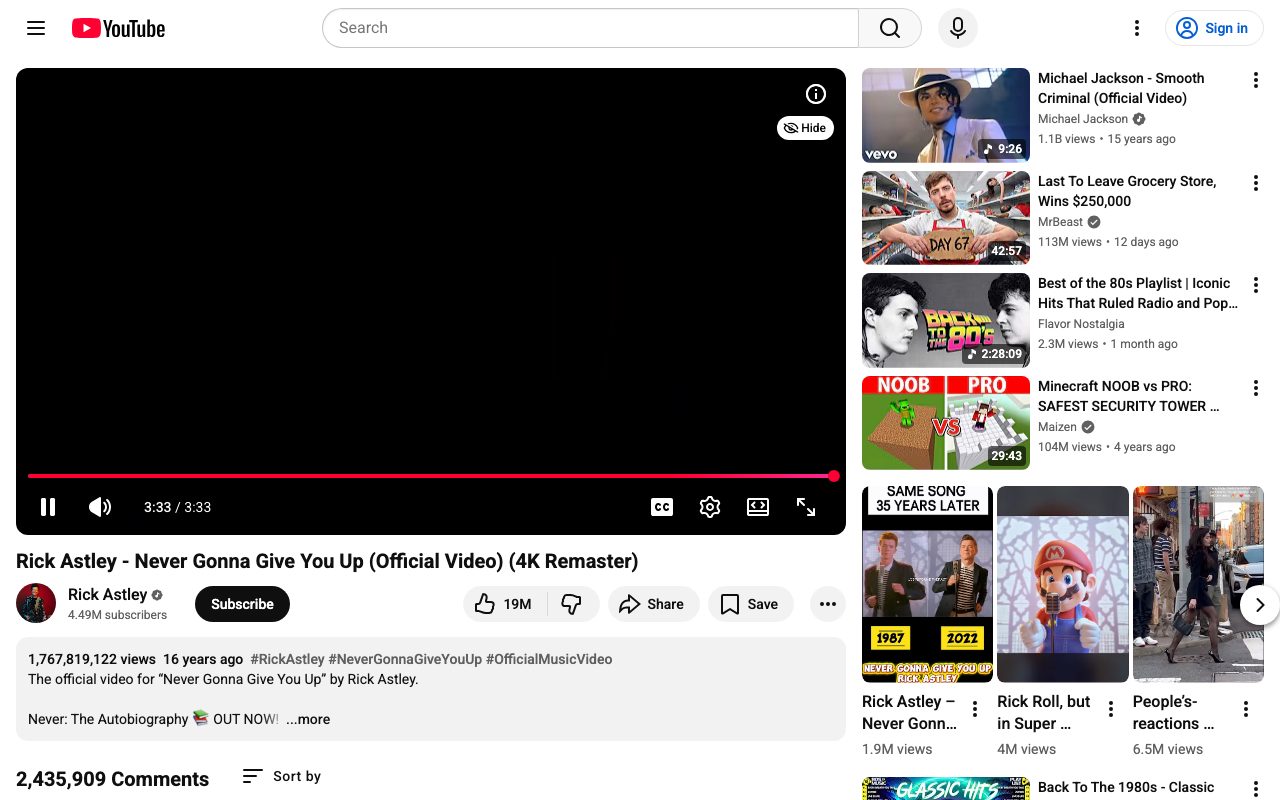
Google Classroom doesn't fix that. The "Add YouTube video" attachment in Classroom is a thin wrapper around a regular YouTube link. Your students see the same YouTube their parents see. Ads, recommendations, Shorts, all of it.
This post is just the practical guide. Five methods to share a YouTube video safely through Classroom, ranked by how well they actually work in 2026.
If you want the longer "what tools to use" picture, the hub post on ViewPure alternatives covers that. This one is just: I have an assignment to give, what do I do right now.
Method 1: Use a safe-link tool, paste the safe link into Classroom
This is the cleanest workflow for most teachers, especially if you're sharing more than one or two videos.
The steps:
- Find the video on YouTube. Copy the URL.
- Paste it into a safe-link tool. Free options that work: VidCove Safe Link, video.link, Watchkin. Paid: SafeShare.
- Get back a clean link.
- In your Google Classroom assignment, click Add → Link (not "YouTube video"). Paste the safe link.
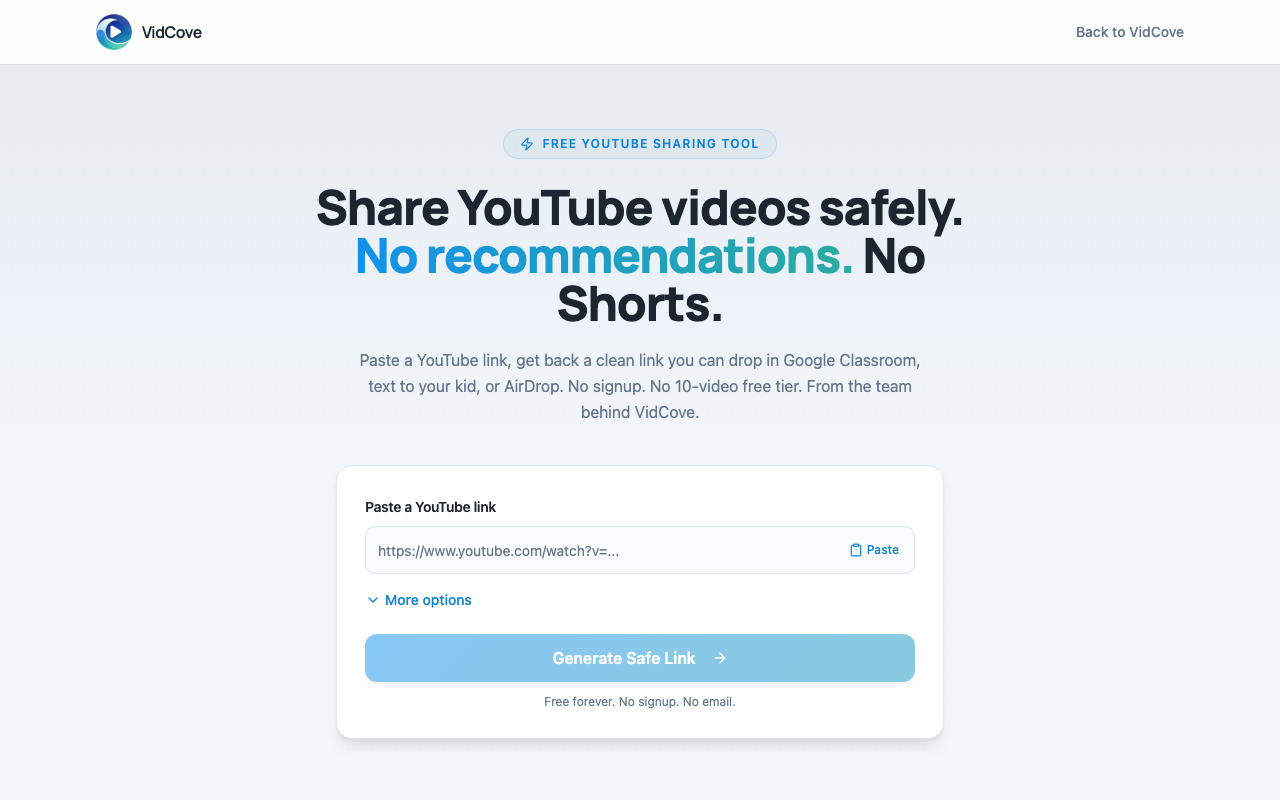
That's it. When students click through, they see only the video. No ads, no recommendations, no comments, no Shorts.
Why "Add → Link" and not "Add → YouTube video": the Classroom YouTube integration auto-resolves your safe link back to the underlying YouTube URL and strips your protection. Treat the safe link as a regular external link.
Tradeoffs: You add one step to your workflow (paste through the tool first). In exchange, you get a clean experience that won't surprise you in front of a parent.
My take: This is what I'd do for any video I'm assigning to students. The five seconds it adds is worth it.
Try the workflow in this method.
VidCove Safe Link is the free tool we built for exactly this. Paste a YouTube URL, get back a clean link to drop in Classroom. No signup, no 10-video paywall, no watermark.
Open Safe Link →Method 2: Embed the video in a Google Slide and share the slide
If the video is part of a larger lesson (direct instruction, a warm-up, a station activity), putting it in a Slide is often better than sharing it as a link at all.
The steps:
- Open a Google Slide. Insert → Video → paste the YouTube URL.
- Click the video on the slide → Format options → uncheck "Autoplay" if you want manual control, set start/end times if you want to clip it.
- Share the Slide deck through Classroom, or use it for in-class projection.
When you play the video from inside Slides, you don't get the YouTube chrome. No recommendations grid at the end, no comments, no Shorts. It's the cleanest option for in-class projection.
Tradeoffs: Students need to be inside the Slides deck to watch, which is fine for assignments where the video is part of a larger activity but awkward if you just want them to watch one video and turn in a response.
My take: Best option for in-class projection. Mediocre option for asynchronous assignments where the video is the main thing.
Method 3: The Google Classroom YouTube attachment (what you've probably been doing)
Worth saying clearly: the default behavior here is not safe.
When you click Add → YouTube video in Classroom and paste a YouTube URL, Classroom embeds the standard YouTube player. Students get the full YouTube experience. Pre-roll ads, recommendations sidebar on desktop, autoplay to algorithmic picks at video end, Shorts shelf depending on device.
There's no setting to turn this off. Google has not built a "show this video without the rest of YouTube" mode into Classroom, despite teachers asking for years.
My take: Don't use this for any video where you'd be embarrassed if a parent saw what came up next.
Method 4: The hyphen hack (yout-ube.com)
You may have seen this floating around: take youtube.com/watch?v=ABC123 and turn it into yout-ube.com/watch?v=ABC123. The browser routes through a different YouTube interface that strips most of the chrome.
Why I'm including it: Because if you're reading this five minutes before class and you don't have time to learn a new tool, this works often enough to be useful in a pinch.
Why I'm not recommending it: YouTube has changed this behavior several times. Sometimes the hyphen trick gives you a clean fullscreen player. Sometimes it gives you a normal page with ads. Sometimes it doesn't load at all. Not something to rely on for an assignment thirty kids are going to click through next Tuesday.
My take: Emergency-only. Use a real tool if you have thirty seconds.
Method 5: Download the video and upload it to Classroom directly
Tempting, and I know teachers who do this. I'm not going to walk you through it.
The reason: downloading a video from YouTube to redistribute it, even to your own students, almost certainly violates YouTube's terms of service and may violate copyright depending on the video. Most schools have policies against it. And if the original video gets updated or pulled, your saved copy becomes outdated and you have no way to know.
My take: Don't.
A quick note on YouTube Shorts in Classroom
The Shorts problem deserves its own paragraph. Even when you successfully strip the recommendations grid and the comments, Shorts can still appear depending on how the student opens the link, what device they're on, and what they do after the video.
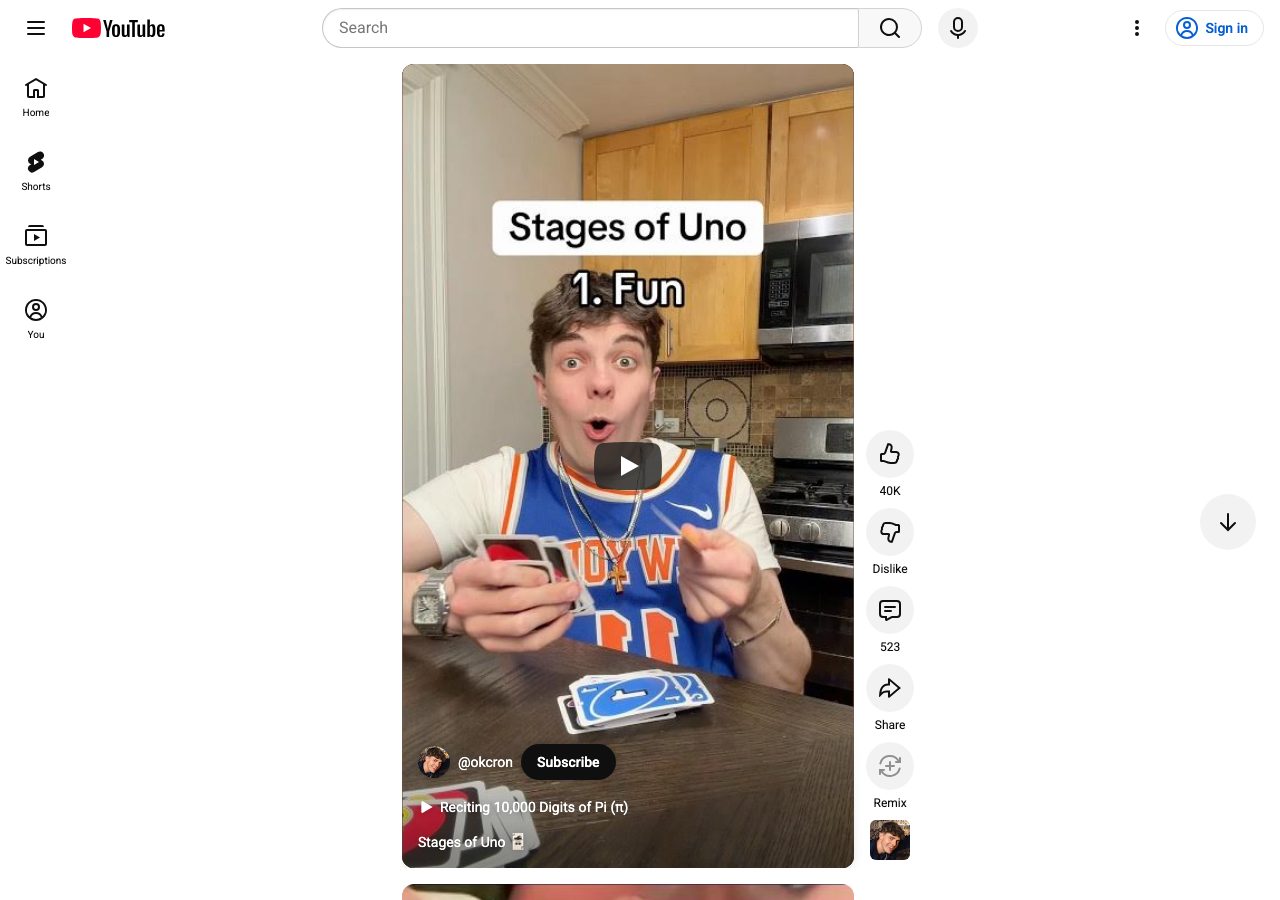
The only way to fully eliminate Shorts from the student's experience is to use a tool that wraps the video in a clean embed page (Method 1) or pulls the video out of the YouTube interface entirely (Method 2). Methods 3, 4, and 5 don't reliably block Shorts.
If Shorts in particular is your concern, we wrote a longer guide on blocking Shorts across every device. It covers the broader problem outside of Classroom too.
What I'd actually recommend
For 90% of Classroom assignments where you're sharing one or two YouTube videos: Method 1 (paste through a safe-link tool, then "Add → Link" in Classroom). It's the cleanest workflow and the one you can teach a colleague in thirty seconds.
For lessons where the video is part of a larger activity: Method 2 (embed in a Slide).
For everything else: budget the five seconds to do it right. The alternative is the email from the parent, and that takes a lot longer than five seconds.
This is part of a series on safe video for kids and classrooms. The overview post on ViewPure alternatives covers the broader landscape. We also built VidCove Safe Link, a free tool for the workflow in Method 1, no signup required. And if your bigger concern is what your kid watches at home, not just what your students see in class, VidCove is what we built for that.
Related reading: