How to Block YouTube Shorts on iPhone and iPad (Parent's Guide, 2026)
Every iOS-native option for blocking YouTube Shorts, ranked by how well each one actually works for kids — plus what to do when Apple's Screen Time isn't enough.
If you searched "how to block YouTube Shorts on iPhone," you have probably already spent twenty minutes inside the YouTube app's settings looking for a switch that doesn't exist. There is no in-app toggle that turns off Shorts on iOS. There never has been. I've been waiting for one for five years.
I'm a parent of two young kids and I built VidCove, a curated YouTube app for kids, in part because of this exact frustration. I'll come back to that. First, the iOS-native options that actually work — and the trade-offs each one comes with.
What changed in January 2026 (and why it barely helps on iOS)
In January 2026, YouTube rolled out parental controls for Shorts. Headlines aside, here is how the update actually lands on iPhone and iPad:
- The Shorts daily-limit setting only exists on supervised teen Google accounts (ages 13–17). Nothing for under-13s. Nothing for YouTube Kids.
- The account-level Shorts setting does travel with the account, so if a supervised teen uses the YouTube app on an iPhone, the limit applies there.
- But Family Link's device-level enforcement (screen time, app blocking, Chrome filtering) does not work on iPhones or iPads at all — Google can't get the OS privileges Apple refuses to grant it. Everything you read about Family Link controls being binding is Android only.
- Even the account-level Shorts limit has no enforcement on the web. If your teen opens youtube.com in Safari or Chrome on iOS, Shorts are unrestricted.
- Per YouTube's own docs, the teen can unilaterally turn supervision off at any time. You get an email and a pep talk. There is no parental override.
Net: the January 2026 update does not give iOS parents a working Shorts block. The app-level setting is partial, the web escape hatch is wide open, Family Link can't enforce, and the teen holds the revocation switch. On iOS, you need a different approach. Keep reading.
The four iOS options, ranked
There are four ways to approach this on iPhone or iPad. None is perfect. I'm ranking them in the order I'd actually recommend for a parent of a younger child.
Option 1: Use a curated alternative app
This is what I do for my own kids and it's the only option on this list that makes Shorts structurally impossible rather than blocked-by-a-setting-that-might-break-next-month.
A curated app like VidCove pulls videos from YouTube channels you personally approve, on a per-child basis. Your kid gets a clean video grid of approved content. There is no algorithmic feed. There are no Shorts because the app's architecture doesn't include them. You install the app on the iPad, your kid signs in with a PIN, and that's it — no settings to break, no extensions to update, no workarounds.
The trade-off is that you're swapping the YouTube app for a different app, which means a different login flow for your child and a one-time setup where you whitelist the channels you trust.
This is the approach I would have killed for when I started looking for a solution two years ago, which is why I built one.
Option 2: Block the YouTube app entirely with iOS Screen Time
This is the iOS-native nuclear option. It works reliably and it requires no third-party software.
- Open Settings on the iPhone or iPad.
- Tap Screen Time. If you haven't set it up before, follow the prompts to set up Screen Time for your child's device or for "This is My Child's iPhone/iPad."
- Tap Content & Privacy Restrictions → toggle on if it's off.
- Tap Allowed Apps (on iOS 17 and earlier) or Allowed Apps & Features (iOS 18+).
- Toggle YouTube off.
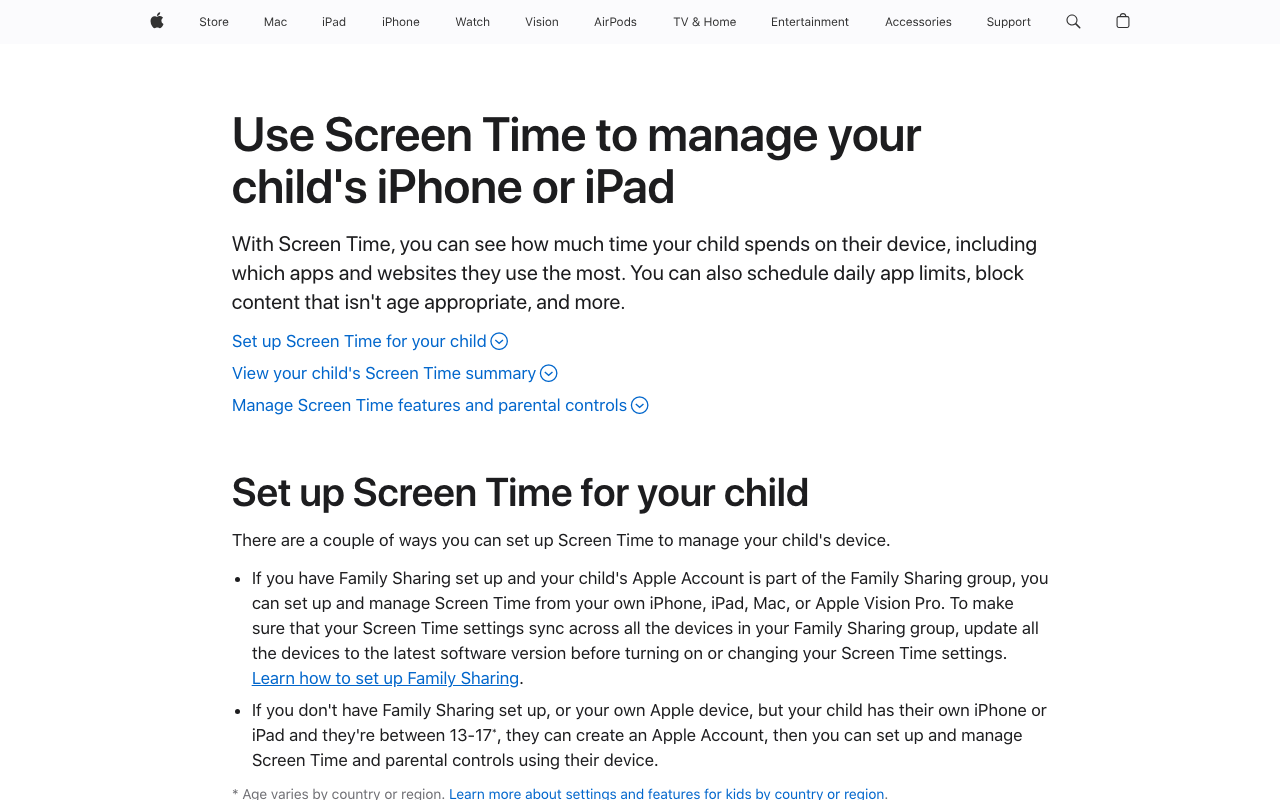
The YouTube app icon disappears from the home screen. Your child cannot open YouTube on this device. You will need to set a Screen Time passcode separate from the device unlock passcode so your child cannot just turn the restriction off.
The trade-off: this blocks all of YouTube. Educational content, science explainers, music videos, the Khan Academy channel — everything goes, not just Shorts. For a lot of families this is too much. For some families it's actually a feature, because YouTube without Shorts is still a recommendation algorithm leading kids down rabbit holes.
A second trade-off: blocking the YouTube app does not block YouTube on Safari. A determined kid can type youtube.com into the browser. To close that loophole, you also need to use Screen Time → Content & Privacy Restrictions → Web Content → Limit Adult Websites, and then add youtube.com to the "Never Allow" list.
Option 3: Family Link supervised teen account (13+ only, and weaker on iOS than you think)
If your child is 13 or older and has their own Google account, you can set the account up as a supervised teen account through Google Family Link, then use the January 2026 Shorts limit:
- Install Family Link on your phone if you don't have it.
- Add your teen's account as a supervised account (teen has to agree to link — both accounts need consent).
- Open Family Link → tap your teen's account → Controls → YouTube → Screen time or Shorts settings.
- Set Shorts daily limit to 0 minutes.
This is the best YouTube offers on iOS, and it's genuinely weaker than people assume:
- Only enforces in the YouTube app, not on youtube.com in Safari or Chrome. Any iOS browser is an escape hatch.
- Family Link device controls don't work on iOS. You can't enforce screen time, block the YouTube app, or filter content at the device level the way you can on Android — Apple doesn't give Family Link the OS privileges it would need. Parents who set up Family Link on an iPhone expecting Android-level enforcement are surprised. It's not there.
- The teen can unilaterally turn supervision off. YouTube docs: "Supervision can be removed at any point by a parent or a teen." When they do, you get an email titled "Teen turned them off" and no mechanism to force re-enrollment.
If your 14-year-old mostly uses the YouTube app and hasn't disabled supervision, the Shorts limit is real. Anywhere outside that narrow case, it leaks.
If your child is under 13, this option does not apply at all. YouTube did not extend the Shorts control to under-13 accounts in the January 2026 update.
Option 4: "Show Fewer Shorts" on the home screen (does not work)
You will see this recommended on a lot of older blog posts, usually described as "hide Shorts for 30 days." YouTube has quietly downgraded the feature since then. In the current app, scrolling to the Shorts shelf and tapping the three-dot menu gives you "Show fewer Shorts" — an algorithmic nudge, not a block.
This is a band-aid, not a fix:
- It's a ranking signal, not a removal. Shorts still appear on the home screen — just marginally less often, maybe.
- It does nothing to search results, channel pages, or the watch-next column.
- It's account-level, tied to one signed-in profile, and YouTube can (and does) tune how much weight the signal carries.
I'm including this option because it's the most-recommended workaround on the internet and it does not actually solve the problem. Skip it.
What about Safari extensions?
Safari on iOS supports content-blocking extensions, and there are a few that claim to hide YouTube Shorts. In my experience they're unreliable. YouTube ships UI changes constantly and these extensions go stale within weeks. They also only work in Safari, not the YouTube app, which is where most kids actually watch.
If you want a browser-extension approach, do it on a desktop or laptop where the extensions are mature and well-maintained. I covered the desktop options here: Best Chrome extensions to block YouTube Shorts for parents.
What about modified YouTube apps?
You'll see Reddit threads recommending sideloaded versions of YouTube that strip out Shorts. On iOS this requires jailbreaking, which I would not do on a child's device under any circumstances. Don't.
The iOS fix I actually use for my kids.
VidCove runs on iPhone and iPad. You whitelist the YouTube channels you trust — Ms Rachel, Mark Rober, Khan Academy, whoever. No algorithm, no Shorts, no Screen Time juggling.
Try VidCove Free →My honest recommendation
If your child is a cooperative 13+ who mainly uses the YouTube app and hasn't yet figured out supervision can be revoked in three taps, Family Link's Shorts limit is worth turning on as a first line. Just know what you're getting: partial coverage, app-only, teen can opt out.
If your child is younger, watches on a shared iPad, uses Safari at all, or is technically curious enough to Google "turn off Family Link," the Family Link path does not solve this on iOS. You have a binary choice. Either accept that YouTube will keep showing Shorts (and pair it with a hard Screen Time block on YouTube as a whole), or move your kid to an app that doesn't have Shorts in the first place. The middle path — keep the YouTube app, remove only Shorts, enforce it on every screen — does not exist on iOS and there's no indication it ever will.
That's why I built VidCove. It's an iOS app that lets you approve YouTube channels per child, and your kid watches the approved content with no algorithm and no Shorts. Free for 7 days, then $7.99/month. If it's not the right fit, the Screen Time block is a real fallback.
The full cross-device version of this guide is here: How to Block YouTube Shorts for Kids in 2026 (Every Device).
Last updated April 2026. — Austin Nichols, founder of VidCove.