Can You Disable Shorts in YouTube Kids? (No — Here's What to Do Instead)
YouTube Kids has no setting to disable, limit, or hide Shorts — even on Approved Content Only. Here's the honest answer for parents and the workarounds that actually exist.
Short answer: no. As of April 2026, the YouTube Kids app does not have a setting that lets you disable, limit, or hide Shorts. It does not exist on iOS, Android, or the YouTube Kids website. It does not exist on the strictest "Approved Content Only" mode. The January 2026 YouTube parental-controls update did not add it.
I'm a parent of two and the founder of VidCove, a curated YouTube alternative for kids that I built in part because of this gap. I've spent a lot of time inside YouTube Kids' settings looking for the toggle. It's not there.
This post is for the parents who searched for it, found a dozen blog posts that danced around the answer, and want a straight one. Here it is, plus what to actually do about it.
What YouTube Kids does (and does not) let you control
YouTube Kids is YouTube's purpose-built app for kids under 13. It launched in 2015 and the parental-control surface has barely changed since. Here's what's actually in there:
Content level by age band. You can pick "Preschool" (under 5), "Younger" (5–8), or "Older" (9–12). YouTube Kids then mixes algorithmic curation with human review to show "appropriate" content for that band. It is famously not very good at this — inappropriate content has slipped through repeatedly over the years.
Approved Content Only. The strictest mode. You hand-pick every channel and video your child can see. This is the closest YouTube Kids gets to a parent-curated experience.
Search on/off. You can disable search so your child can only see what's on the home feed.
Screen-time timer. A per-session timer (1–60 minutes) that locks the app after time expires. It does not persist — you have to reset it every session. For actual daily limits, you need Family Link on top.
What's not in there: a Shorts toggle. Or a Shorts time limit. Or a "hide Shorts" button. Even if you turn on Approved Content Only and approve a single channel, Shorts content from that channel can still appear because YouTube treats Shorts as a separate surface that the approval system doesn't fully cover.
Also not in there: keyword or topic filtering, a way to lock your child's viewing history (kids can delete their own history on YouTube Kids), or any granular control that lets you say "yes to this channel's long-form videos, no to its Shorts." Approval is channel and video level, not format level.
And as of July 2024, the walled garden on TV is gone. YouTube discontinued the standalone YouTube Kids smart TV app. On smart TVs, YouTube Kids now exists as a profile inside the main YouTube TV app — a 4-digit parent code can prevent profile switching, but the dedicated YouTube-Kids-only experience on the living room TV no longer exists. Most parents who set this up years ago don't know it changed.
Why this gap exists
I don't have inside information, but the absence is conspicuous.
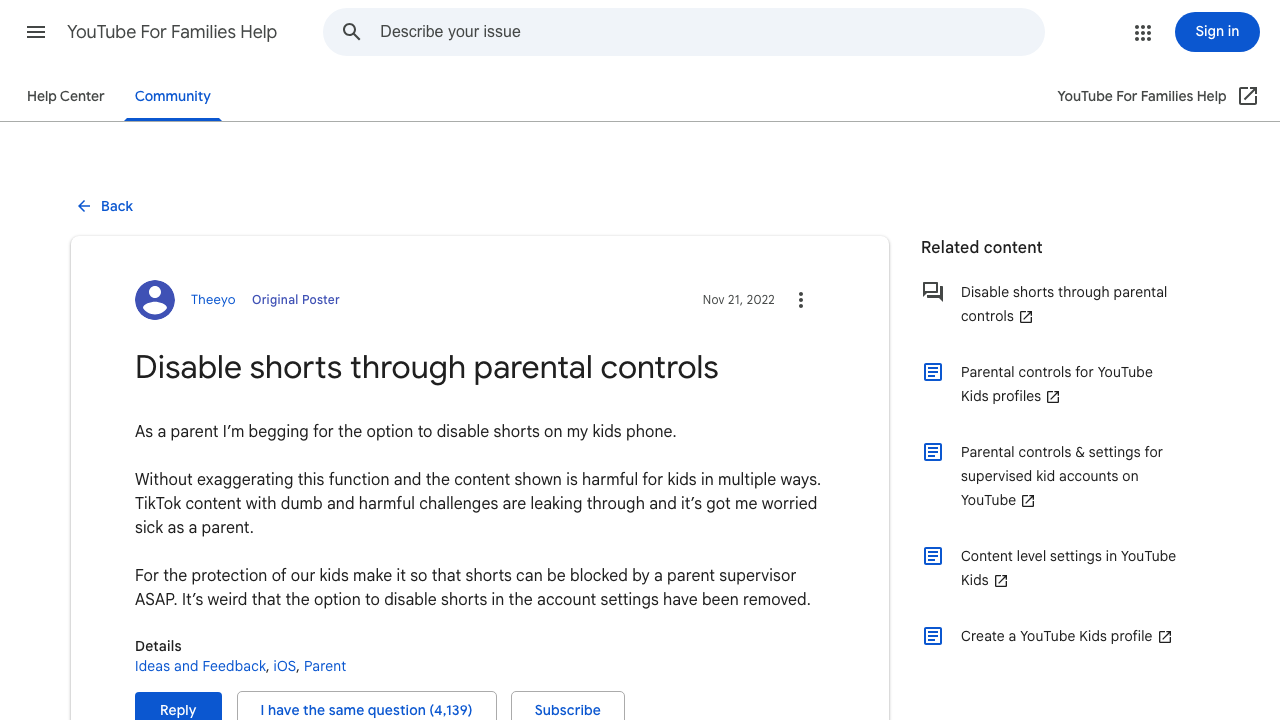
In January 2026, YouTube shipped Shorts time controls for supervised teen accounts (ages 13–17) through Google Family Link. That update did not extend to YouTube Kids accounts, which by definition are under-13. A digital parenting writer publicly called the YouTube Kids omission "borderline criminal," and the YouTube Kids community help forums are full of parents asking for the toggle.
YouTube has had five years and is presumably aware of the demand. The product team has chosen not to ship it. I suspect — and this is speculation — that Shorts engagement among the YouTube Kids audience is high enough that adding a toggle would meaningfully dent metrics that matter to YouTube's broader Shorts strategy. If Shorts engagement among kids is not high, the toggle would be a trivial ship and they would have done it already.
Either way, the practical situation for parents is: this isn't coming.
What to do instead
Four real options, ranked.
Option 1: Switch to a curated app
This is what I built VidCove for. Parents whitelist YouTube channels per child, kids watch in a clean grid of approved videos, there is no algorithm, and there are no Shorts at all because the architecture doesn't include them. Same source content as YouTube Kids (real YouTube channels), different surface, and the parental controls that YouTube Kids should have shipped years ago.
The trade-off is that you're moving away from the YouTube Kids brand and asking your child to use a different app. For a lot of families that's an easy sell because YouTube Kids has worn out its welcome. For others, the brand recognition matters and the switch is a bigger ask.
There are other curated apps too — Jellyfin and Plex with self-hosted libraries, Kidoodle.TV, and a handful of niche players. The shared trait is that they don't include Shorts because they don't include the YouTube algorithm.
Option 2: Block YouTube Kids entirely and use regular YouTube with Screen Time
Counterintuitive, but a real option. Some parents block the YouTube Kids app entirely (via iOS Screen Time or Android Family Link) and let their child watch regular YouTube under tight time limits with no Shorts shelf interaction.
The catch: regular YouTube also serves Shorts, and on regular YouTube there's no equivalent of YouTube Kids' content filtering. You're trading "Shorts in a kid-curated feed" for "Shorts in an uncurated feed." Generally worse. I include this option only because I've talked to parents who do it and they swear by it for older tweens who can self-regulate.
Option 3: Block YouTube Kids and replace with non-YouTube content
If your child mostly watches YouTube Kids for entertainment rather than for specific YouTube creators, the simplest fix is to remove YouTube Kids entirely and lean on apps that are built without Shorts:
- Disney+ for kids' shows and movies.
- PBS Kids for educational content (free, public-broadcasting funded).
- Netflix Kids profile for general kids' programming.
- Apple TV's kids section.
- Library e-loan apps like Hoopla and Kanopy, which both have kids' sections with no algorithmic feed.
For a lot of families this is the right answer. The kid wasn't actually watching YouTube creators specifically — they were just watching whatever the algorithm fed them. Removing the algorithm and replacing it with curated streaming services is a meaningful upgrade.
Option 4: Use Approved Content Only and accept residual Shorts exposure
If you really want to stay inside YouTube Kids, switch to Approved Content Only mode and manually approve every channel. This dramatically reduces — but does not eliminate — the Shorts your kid sees, because Shorts from approved channels can still surface.
To turn it on:
- Open the YouTube Kids app on your child's device.
- Tap Settings (the lock icon in the corner).
- Solve the multiplication problem or enter your custom passcode.
- Tap your child's profile → enter your parent account password.
- Tap Edit Settings → toggle on Approved Content Only.
- Tap into channels, collections, and individual videos to approve them.
This is the most labor-intensive option. It also doesn't fully solve the Shorts problem. A few more caveats parents usually discover after they commit:
- Not available on Chromecast. Approved Content Only works on iOS, Android, and select smart TVs — Chromecast casting falls back to the broader content tier.
- Requires ongoing curation. YouTube's own guidance suggests spending 15–30 minutes a week adding new content to keep the approved library fresh. Skip a couple of weeks and your kid is watching the same 40 videos on repeat.
- You can't whitelist playlists. Only individual videos, channels, and YouTube-curated collections.
- You can't block Shorts from an approved channel. If the channel posts both long-form and Shorts, your approval covers both. The only workaround is to skip the channel approval entirely and manually whitelist individual long-form videos. Forever.
I include this option because some parents prefer the YouTube Kids brand and are willing to do the manual work. If you go this route, treat it as a permanent weekly chore and be honest with yourself about whether you'll actually keep it up.
The toggle YouTube Kids refuses to ship.
VidCove is the Approved Content Only experience parents have been asking YouTube Kids for since 2021 — with actually zero Shorts. One toggle. No workarounds.
Try VidCove Free →What I recommend
I'm biased — I built a curated app — but I'll tell you what I actually do for my own kids.
I don't use YouTube Kids. I use VidCove, because that's the app I built to solve exactly this problem. If you don't want to use VidCove, my next-best recommendation depends on your child:
- Under 5: Switch to Disney+, PBS Kids, or library streaming services. Kids this young don't need YouTube creators specifically; they need engaging age-appropriate video, which other apps deliver without infinite-scroll formats.
- 5–9: Either a curated app (VidCove or an alternative) or Approved Content Only mode in YouTube Kids with regular pruning.
- 9–12: This is the hardest age. Kids this age often want specific YouTube creators that aren't on streaming services. A curated app is the cleanest fit.
The full cross-device guide for blocking Shorts elsewhere is here: How to Block YouTube Shorts for Kids in 2026 (Every Device).
Frequently asked questions
Will YouTube Kids ever add a Shorts toggle?
There has been no announcement and the January 2026 YouTube parental-controls update notably excluded YouTube Kids accounts. I would not plan around this happening.
Does Approved Content Only fully block Shorts?
No. It dramatically reduces the Shorts surface but Shorts content from approved channels can still appear. Approval is at the channel and video level, not at the format level.
Can I disable Shorts on YouTube Kids using Family Link?
No. The January 2026 Family Link Shorts controls only apply to supervised teen Google accounts, ages 13–17. YouTube Kids accounts are under 13. And even on the teen accounts where it does apply, the limit has significant asterisks — here's the full breakdown.
What about deleting the YouTube Kids app and using regular YouTube?
You can, and some parents do, but regular YouTube also shows Shorts and lacks YouTube Kids' content filtering for younger ages. Generally a sideways move, not an upgrade.
Are there third-party parental-control apps that block Shorts inside YouTube Kids?
Not really. Most parental-control apps work at the network or device level — they can block YouTube Kids entirely but cannot reach inside the app to remove Shorts specifically.
Last updated April 2026. If YouTube ships a Shorts toggle for YouTube Kids, I will update this post immediately and probably write a follow-up celebrating it. — Austin Nichols, founder of VidCove.