The Best Chrome Extensions to Block YouTube Shorts (Parent's Guide, 2026)
Honest reviews of the Chrome extensions worth installing on a family computer — what works, what breaks, and which one to pick for your situation.
If your kid does most of their YouTube watching on a shared family laptop or desktop, browser extensions are the most reliable way to block Shorts. They install in a minute, they cost nothing or close to it, and they work across the entire YouTube site — search results, channel pages, recommendations, and the home feed.
I'm a parent of two and the founder of VidCove, a curated YouTube app for kids on mobile and TV. (Browser extensions don't help on phones or smart TVs — that's a separate problem and I built VidCove to solve it. More on the trade-offs below.) I originally compared these options hands-on in April and rechecked every official listing, version, update date, feature set, and privacy disclosure on August 3, 2026.
The short answer: Start with Remove YouTube Shorts if you want a free, one-purpose blocker. Choose ShortsBlocker if you want optional schedules, daily limits, or channel whitelisting. Use Unhook when you want to remove recommendations and other distractions too.
Quick recommendations
| Extension | Best fit | Parent controls | Price | Browsers | Listing status checked Aug. 3 |
|---|---|---|---|---|---|
| Remove YouTube Shorts | Simple Shorts removal | None | Free | Chrome | v2.1.6; updated Jun. 16, 2026; 200K users |
| ShortsBlocker | Limits, schedules, and whitelists | Optional premium controls | Free core; paid extras | Chrome | v3.6.3; updated Jul. 23, 2026; 100K users |
| Unhook | Broader distraction removal | Many hide/show toggles | Free | Chrome, Edge; Firefox version available | v1.6.9; updated Mar. 22, 2026; 1M users |
| YouTube Shorts Blocker | Open-source alternative | One on/off toggle | Free | Chrome, Firefox | v0.2.1; updated Oct. 12, 2025; small install base |
How I checked these: The screenshots are my original April 2026 captures. On August 3, I rechecked each developer's official store or repository page for availability, version, update date, stated features, browser support, pricing model, user count, and privacy disclosure. I did not create test accounts or purchase premium features. Because YouTube changes its interface frequently, verify the exact surfaces your child uses after installation and after major browser updates.
How browser extensions block Shorts (and where they break)
Before the reviews, a quick honest note. Shorts blockers generally modify youtube.com to hide or redirect Shorts surfaces: the Shorts shelf, tab, search results, and direct Shorts pages. When YouTube changes its interface, those rules can stop matching. An extension's update history is useful evidence, but a recent date is not proof that every surface works and an older date does not automatically mean an extension is broken.
Check the store listing, permissions, developer website, and recent reviews, then test the YouTube homepage, search, channel pages, subscriptions, and a direct /shorts/ link in the child's browser profile. Recheck after a major YouTube or browser update.
The other limitation: extensions only work in the browser they're installed in. If your kid has Chrome and Firefox both installed, you need to install the extension in both. If they switch to Edge or open YouTube in an Incognito window where extensions are disabled, Shorts come back.
For shared family laptops where you control the browser setup, this is fine. For a kid's personal device where they can install software, less so.
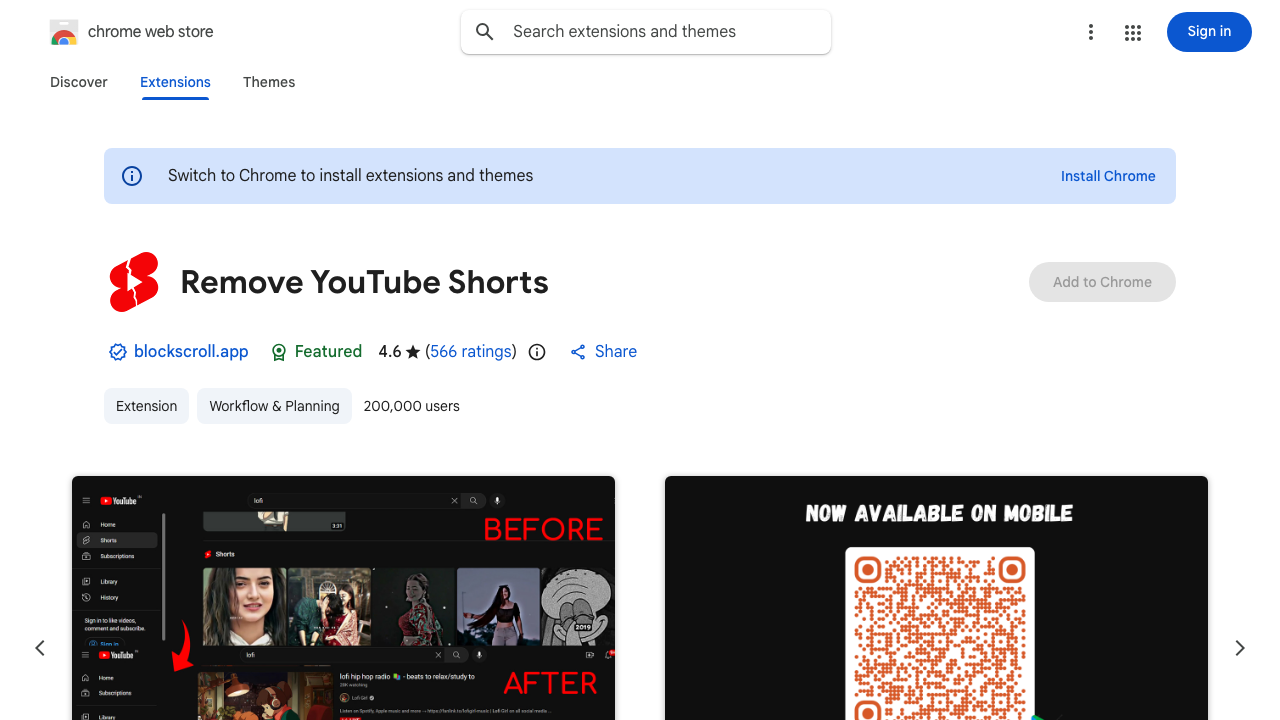
Block Scroll / Remove YouTube Shorts
Best for: Parents who want one job done well, with no configuration.
My take: This is what I'd install first. The developer says it removes Shorts from the YouTube homepage, search results, and recommendations with no setup. The current listing is version 2.1.6, updated June 16, 2026, with a 4.6 rating, 646 ratings, 200,000 users, and a Featured badge. The developer's privacy disclosure says it does not collect or use your data.
It also has a companion Android mobile-browser app called BlockScroll. That does not change the official YouTube app, so treat it as a browser-only option rather than a phone-wide control.
Trade-offs: No premium tier, no time limits, no whitelisting. If you want any of those, look at ShortsBlocker.
Install Block Scroll on the Chrome Web Store
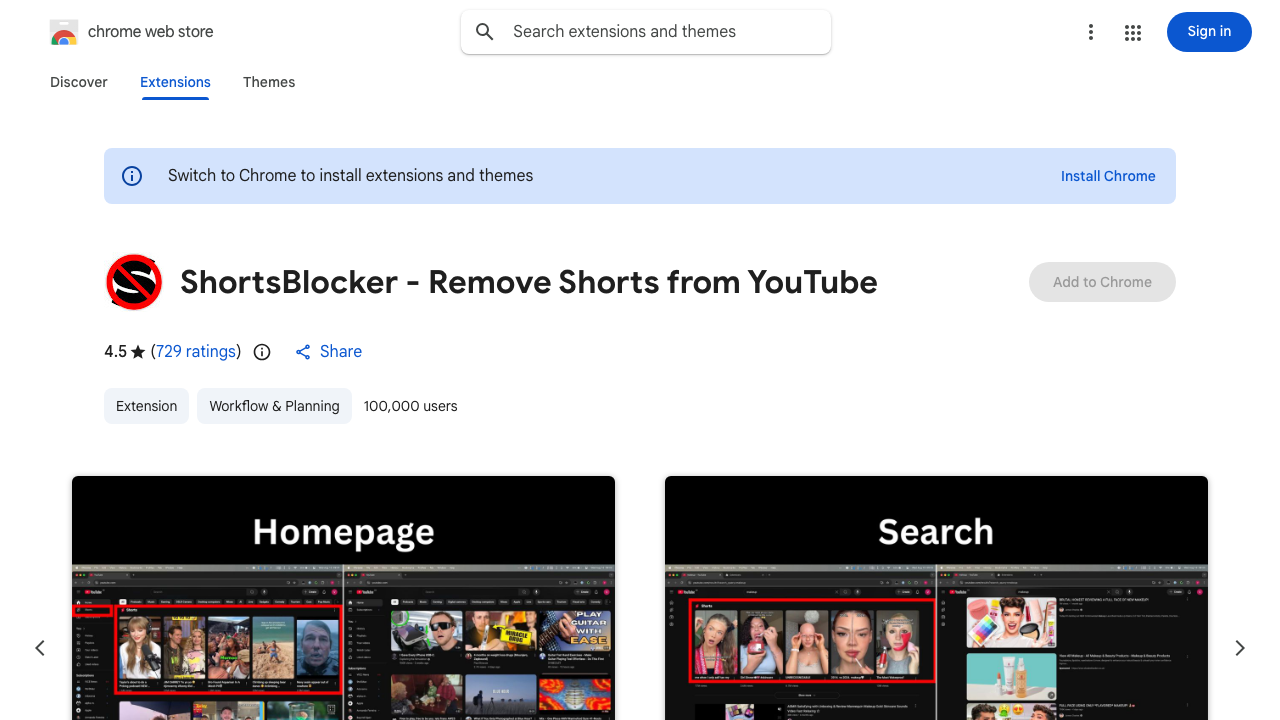
ShortsBlocker
Best for: Parents who want extras like daily Shorts limits, channel whitelisting, or scheduled blocking.
My take: The free version handles the basics — its listing says it removes Shorts across YouTube without an account. The current listing is version 3.6.3, updated July 23, 2026, with a 4.5 rating, 868 ratings, and 100,000 users. The optional premium tier adds features that some parents will care about:
- Daily Shorts limit — letting you allow, say, 10 minutes of Shorts and then blocking them.
- Scheduled blocking — Shorts blocked during homework hours, allowed otherwise.
- Channel whitelist — allow Shorts only from specific approved channels.
- Statistics — how many Shorts were blocked and how much time was "saved."
The developer says the free personal-use blocker does not collect data. Premium authentication requires basic account information, so evaluate that separately if you want the paid controls. The listing also says schools and businesses need a commercial license.
Trade-offs: The premium features are useful but not essential — if you want to fully block Shorts, the free version does that. The premium tier is more about controlling Shorts than blocking them.
Install ShortsBlocker on the Chrome Web Store
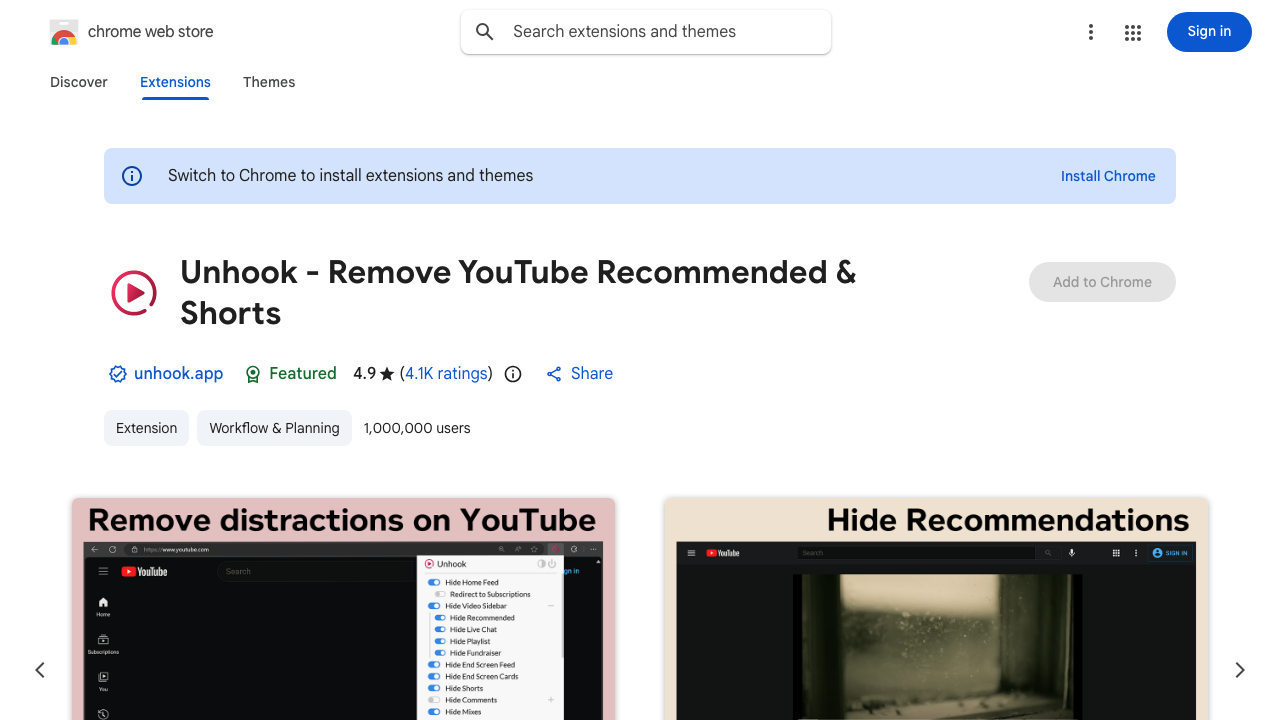
Unhook
Best for: Parents who want a much more focused YouTube experience overall, not just Shorts removal.
My take: Unhook is the most aggressive of the bunch. It removes Shorts, but it also lets you remove the YouTube homepage feed, the recommendation column on individual videos, comments, the trending tab, and a long list of other distraction surfaces. The current Chrome listing is version 1.6.9, updated March 22, 2026, with a 4.9 rating, 4,400 ratings, 1,000,000 users, and a Featured badge. Its privacy disclosure says it does not collect or use your data.
This makes it ideal if your goal is "I want my kid to use YouTube to find specific videos they searched for, not to be served an endless menu of new content." Used at full strength, Unhook turns YouTube into something close to a search-only utility, which is genuinely a different experience.
Trade-offs: It's overkill if you only want Shorts gone. The number of toggles can be intimidating. Some parents like the extensive control; others want fewer settings to manage.
Install Unhook on the Chrome Web Store
YouTube Shorts Blocker (TaylorHo, GitHub)
Best for: Parents who want a multi-browser, open-source option.
My take: TaylorHo's open-source extension works on both Chrome and Firefox, which matters if your family computer runs Firefox or you want the same tool on a secondary machine. It has a single block-or-allow toggle and supports six languages.
Because its source is public on GitHub, you can inspect the code and release history. The Chrome listing was version 0.2.1, updated October 12, 2025, with five ratings when checked. That smaller user base and older update make it a secondary recommendation, not my default pick.
Trade-offs: Less usage evidence and a slower recent update cadence than the primary recommendations. It is available through the browser stores, so manual installation is not required.
View it on the Chrome Web Store or inspect the source on GitHub.
Extensions I'd skip
A few patterns to watch out for:
- Extensions that require account signup for basic blocking. A simple Shorts blocker should not need a login. If an account powers optional premium controls, read the privacy disclosure and decide whether those extras justify it.
- Extensions with permissions unrelated to their stated job. Compare every requested permission with the features described on the listing, and skip the tool if the developer does not explain the mismatch.
- Generic "site blocker" extensions that include Shorts as one feature. These work but they're heavyweight for the use case. Pick a purpose-built tool.
- Abandoned-looking listings. An old update is a reason to inspect recent reviews and test carefully, not an automatic failure. No active support channel plus repeated recent breakage reports is the stronger warning.
What extensions can't do
A few honest limitations:
They don't help on mobile. The YouTube app on iOS and Android doesn't support browser extensions. If your kid mainly watches on a phone or tablet, extensions are not your fix. See How to block YouTube Shorts on iPhone and iPad and How to block YouTube Shorts on Android.
They don't help on smart TVs. Smart TV YouTube apps don't support extensions either. There's no clean fix here other than not using the YouTube app on the TV.
They don't help inside the YouTube Kids app. YouTube Kids is a separate app with its own renderer. See Can you disable Shorts in YouTube Kids?.
They can be bypassed by switching browsers. If your kid has Chrome with the extension installed and Firefox without, they'll figure out which one shows Shorts within a week. Either install the extension in every browser on the device, or remove the alternate browsers.
Extensions are a band-aid. Mobile and TV need a real fix.
VidCove covers the devices extensions can't — iPhone, iPad, Android, Android TV, Fire TV. Same idea: approved channels, no Shorts, no algorithm.
Try VidCove Free →My honest take
For a shared family laptop where the kid uses YouTube in a browser, start with Remove YouTube Shorts, verify all five YouTube surfaces listed above, and check again after major browser or YouTube updates. If you need enforceable schedules or whitelisting rather than a full block, compare ShortsBlocker's premium controls before paying.
For mobile and TV — which is where most kids actually watch — extensions don't apply, and your real options are Family Link controls (limited), Screen Time blocking (all-or-nothing), or a curated app like the one I built. The full cross-device version of this guide is here: How to Block YouTube Shorts for Kids in 2026 (Every Device).
If you do want the curated-app option, VidCove runs on iOS, Android, web, Android TV, and Fire devices. You whitelist YouTube channels per child; your kid watches in our app with no algorithm and no Shorts. The free plan includes one child and up to five approved channels; Premium is optional. You can also check whether a YouTube channel is Shorts-heavy with the free Channel Safety Checker before approving it.
Official sources checked
- Remove YouTube Shorts — Chrome Web Store
- ShortsBlocker — Chrome Web Store
- Unhook — Chrome Web Store
- YouTube Shorts Blocker — official GitHub repository
Last updated August 3, 2026. — Austin Nichols, founder of VidCove. I'm not affiliated with any of the extensions reviewed above, and the links are not affiliate links.