YouTube parental controls,
every setting.
A parent's field manual to YouTube Kids, Family Link supervision, the new Shorts timer, and the loopholes nobody tells you about. Forty pages. Up to date. Plain-spoken.
What's inside.
Five parts. Read straight through, or jump to whichever platform your kid uses.
- 00How to use this guide3
- 01Why YouTube's built-in controls aren't enough4
- 02The three platforms you have to understand5
- 03What YouTube Kids is, and who it's for7
- 04Parent account and passcode8
- 05Create a child profile and pick a mode10
- 06The four modes compared: Preschool, Younger, Older, Approved12
- 07Approved content only: whitelisting channels and videos14
- 08Blocking videos and channels16
- 09Screen-time timer17
- 10Watch history: pause, clear, review19
- 11Turning search on or off20
- 12The Shorts problem on YouTube Kids21
- 14What a supervised account is24
- 15Set up supervision: Family Link or YouTube Family25
- 16Explore, Explore More, Most of YouTube — pick a setting27
- 16+The supervised-account control panel28
- 17Supervise a teen account30
- 18Shorts timer for teens (recap)31
- 19When your teen opts out of supervision33
- 20Built-in teen defaults (Digital Wellbeing, bedtime, breaks)34
How to think about this.
Three short chapters to set the frame — how to read the guide, why the built-in controls aren't enough, and the three platforms you actually have to understand before you configure anything.
How to use this guide.
This is a field manual, not a marketing brochure. Every step has been tested against the public documentation as of April 2026. Where a feature changed recently, the change is noted in the margin. Where a feature has a loophole, the loophole is called out with a warning block — because an incomplete understanding of parental controls is how parents get surprised.
Read it front to back
If you're starting from scratch, read cover to cover. The parts build on each other: YouTube Kids first, supervised tween accounts next, teen settings last.
Jump to your section
Use the table of contents above. Each chapter is self-contained with its own screenshots and a "what this doesn't cover" note at the end.
How to read the callout blocks
Blue callouts are the good stuff — shortcuts, useful settings, defaults that work.
Amber callouts flag a quirk. The control exists, but it works differently than you'd expect. Most "I thought I turned that off" moments live here.
Red callouts are the gaps — places where YouTube's controls simply don't cover a case. You can't close these from inside YouTube; you'll need a different tool.
Teal callouts flag features that arrived in the last twelve months. YouTube changed a lot between January and April 2026, and older blog posts are out of date.
A note on screenshots
Screenshots in this guide are illustrative — the exact layout changes between iOS, Android, and web, and between app versions. The menu paths in breadcrumb format are what you should follow when your screen doesn't match.
YouTube's parental controls aren't broken. They're working as designed.
YouTube's default goal is watch time. Parental controls are a side feature, not the product. That's why settings live in three different places, why the most powerful mode (Approved content only) is buried under four taps, and why the new Shorts timer is app-only. Knowing which controls exist — and which don't — is the whole job.
What YouTube gives you
Three fragmented surfaces (YouTube Kids app, supervised Google accounts, teen defaults), settings that don't carry between devices, a Shorts timer that only works inside the app, and no native way to whitelist a set of channels outside of YouTube Kids.
Parents reach for these in good faith, then discover the gaps only after their kid hits them.
What you'd actually want
One place to say "these channels, not those," one switch for Shorts that works on every surface, a tamper-proof record of what was actually watched, and settings that sync across every device without being re-entered.
You'll use this guide to get as close to that as YouTube's own tools allow — and to know, clearly, where they stop.
YouTube's new Shorts feed timer (January 2026) is the first native Shorts control ever. It only works in the app, only on supervised accounts, and teens can opt out of supervision once they turn 13. Every one of those is a real limitation, not a rumor.
What this guide will and won't do
- Cover every official control YouTube offers, end to end
- Show exact menu paths for iOS, Android, and web where they differ
- Flag every loophole, caveat, and "sync gotcha" we found
- Recommend shady workarounds or router hacks
- Pretend YouTube's controls are sufficient for every family
- Cover every third-party parental control app (that's a different guide)
- Give advice on screen-time totals — that's your call
Three platforms. One goal.
YouTube's parental controls aren't one system. They're three separate systems that overlap in confusing ways. Here's how to think about them before we go deep on each.
YouTube Kids
A separate app (and website) with its own UI, its own login, and its own rules.
- Pre-filtered catalog
- Four content modes
- Parent passcode or math gate
- Whitelisting available
- No Shorts toggle
Supervised account
A real Google Account for your child, linked to yours via Family Link.
- Three content settings
- Shorts timer (2026)
- Block by channel
- Review activity
- Pause/clear history
Teen defaults
Automatic protections that apply to any account identified as under 18 — supervised or not.
- Bedtime reminders on
- Take-a-break reminders on
- Autoplay off
- Personalized ads off
- Repetition limits on some content
The quick decision
| Your kid is… | Start here | Because |
|---|---|---|
| Under 9 | YouTube Kids, Approved content only | The only way to actually limit what plays to a specific list you chose. |
| 9 to 12 | Supervised account with "Explore" setting | YouTube Kids starts feeling babyish; this is the first real tween option. |
| 13 to 15 | Supervised account, Shorts timer set low | You still have control, and you can block channels by name. |
| 16 to 17 | Supervised account + conversation | Built-in teen defaults help, but they can opt out. The talk matters more than the setting. |
YouTube Kids, complete setup.
The standalone app is the only YouTube product where you can actually say "only this list plays, and nothing else." Seven chapters. Every setting, every gotcha, every screen.
What YouTube Kids is, and who it's for.
A separate app, a separate login flow, a separate rulebook. It is not "YouTube with a filter." Here's what it actually is, so the rest of the setup makes sense.
What it is
Different icon on the home screen. Different catalog. Different recommendations. Different feed. Same company, very different rules.
- Pre-filtered library (no sign-in required to browse)
- Four content modes, one of which is a whitelist
- Parent passcode or math gate guards every setting
- Works on iOS, Android, web, most smart TVs
Who it's for
Below four, consider not using screen content at all. Above eleven, kids will ask why their friends have "real" YouTube — that's when supervised accounts (Part 3) enter the picture.
- Preschool (ages 4 & under): strictly short, slow-paced
- Younger (5 – 8): songs, cartoons, simple crafts
- Older (9 – 12): music, gaming, DIY, science
- Approved content only: your list. Only your list.
The content shown in "Younger" and "Older" modes isn't a fixed catalog. It's algorithmic, filtered by human review and machine classifiers. That means your kid can see something new every day, and you won't know what. Approved content only is the only mode that behaves like a real whitelist.
What YouTube Kids is not
- It is not "the fully safe version of YouTube." Filtered does not mean perfectly curated.
- It is not a screen-time manager — the timer only works inside the app.
- It is not a whitelist by default. You have to switch modes to get a whitelist.
- It is not consistent across devices. Passcodes, timers, and some toggles are per-device, not per-profile.
Parent account and passcode.
Before any profile exists, YouTube Kids asks for proof that an adult is driving. Here's the exact flow on first launch, plus how to change the passcode later.
First launch, step by step.
- Install and open the app. App Store · Google Play · youtubekids.com
Search for "YouTube Kids." On a shared iPad, install it under the parent's Apple ID.
- Tap "I'm a parent," confirm birth year. Welcome screen → I'm a parent → birth year
The birth-year prompt gates the adult flow. You can skip Google sign-in here and use a passcode-only setup, but without a signed-in Google Account your only passcode recovery is to uninstall and reinstall — which wipes every setting on that device. Signing in is recommended.
- Sign in with your Google Account (optional but recommended). Sign in → Google → your email → password
Without a signed-in parent, you can't recover a forgotten passcode except by reinstalling the app, which wipes every setting on that device.
- Set a four-digit passcode. Settings → Parental controls → Use custom passcode
Default is the math gate (a multiplication problem like "what's 4 × 3?"). A real four-digit passcode is better — kids figure out arithmetic fast. Don't use a birthday. Don't use 1234.
- Confirm, then create your first kid profile. Settings → Add another kid
Every adult action inside YouTube Kids now runs through this gate.
The passcode is device-scoped. If your kid uses YouTube Kids on an iPad and a Kindle Fire, you will set the passcode twice, and it can be different on each. There's no way to sync it.
The passcode pad (what you'll actually see).
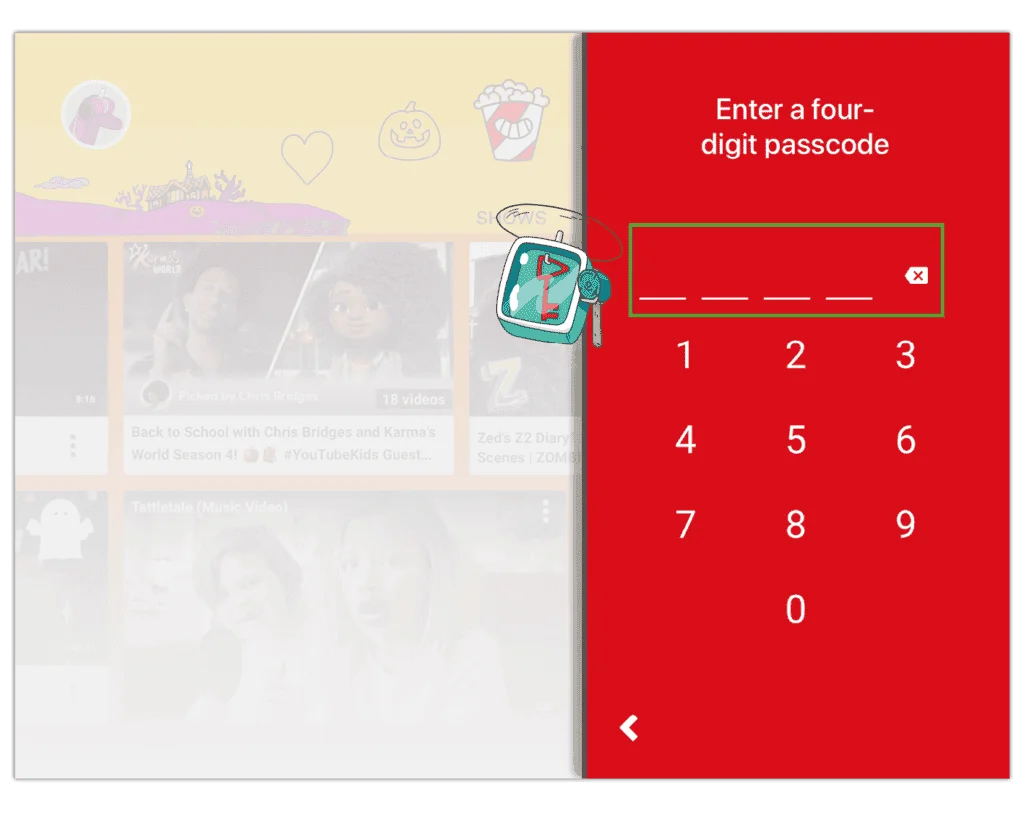
Four-digit entry, shuffled numbers on every attempt so a kid can't memorise the physical tap pattern. This is the default on iOS and Android. Web uses a typed entry — same four digits.
YouTube Kids will not accept a passcode longer than four digits. It's a speed gate, not a vault. Keep it uncommon (not your door code, not a birthday, not 0000), but don't confuse it with a password that protects your Google Account.
To change the passcode.
- Open settings (lock icon, bottom right)
- Complete the math gate or enter current passcode
- Tap Parental controls
- Tap Reset passcode or Update passcode
- Enter the new four digits twice
If you forget it.
If you signed in with a Google Account during setup, use the Forgot passcode flow to reset with your Google credentials. If you never signed in, the only documented reset is to uninstall and reinstall the app — every profile, timer, history, and whitelist on that device is lost. Sign in with Google during setup so you have a recovery path.
Good passcodes, bad passcodes.
You'll type this a dozen times a week. Pick something you remember and a kid can't guess from watching you once.
Avoid
- Your phone's unlock code
- Your kid's birth year (they know it)
- 1234, 0000, 1111
- The kid's street number
Better
- Last four of an old phone number
- A favourite year that isn't a birthday
- Any four digits you'll remember but your kid has never seen you type
While you're here
- Rotate it when your kid turns 5 (they're watching you more carefully now)
- Change it again at 8
- Make sure the co-parent knows it
Create a child profile and pick a mode.
Every kid gets their own profile, picture, name, and content mode. Up to eight profiles per parent account. Here's how to set one up — and how to fix it when you realise you picked the wrong age.
Adding a profile.
- Open the parent settings gate. Lock icon (bottom right) → passcode
- Tap "Add another kid" (or "Add a new kid"). Settings → Add another kid
- Name and birth month / year. First name · month · year
First name only — the app doesn't need a last name and you shouldn't give it one. The birth year is how Google pre-selects a content mode.
- Pick an avatar.
Let your kid pick. Small thing, but it's the only piece of this they control, and it makes them care which profile they use.
- Choose a content mode. Preschool · Younger · Older · Approved content only
This is the big decision. See Chapter 06 for the comparison, or skip to Chapter 07 for approved-content setup. You can change it later.
- Set timer and search state (optional). Timer · Search on / off
You can skip both for now; both are easy to change later (Chapters 09 and 11).
Siblings can each have their own profile with their own mode, timer, and search setting. A six-year-old on "Younger" and a ten-year-old on "Approved content only" is a common and perfectly fine combo.
Changing a mode later.
- Open settings, pass the gate
- Tap your kid's profile
- Tap Content settings
- Pick one of the four modes
- Confirm. Takes effect on this device immediately; other signed-in devices update on next app launch.
Switching from "Approved content only" back to a wider mode does not erase your approved list. It's preserved, so you can return to the whitelist without redoing the work.
Real-world starter profiles.
Three setups we see work well — copy whichever one matches your kid.
For Mia, 6
- Mode: Younger
- Search: off
- Timer: 25 min
- Review weekly
For Leo, 9
- Mode: Approved
- List: ~40 channels
- Timer: 30 min
- Add 1 channel / week
For Theo, 3
- Mode: Preschool
- Search: off (default)
- Timer: 15 min
- Adult co-watches
Four modes, compared.
This is the page to come back to when a kid ages into the next tier or when you realise the current mode is wrong. Every mode is reversible.

Preschool
Creativity, learning, imagination. Strictly preschool-tier content. No search by default (and you should leave it that way).
- Songs, alphabet, simple stories
- Slow pacing, few jump-cuts
- Narrow channel list
Younger
Kid-friendly music, cartoons, DIY and crafts. Search is opt-in. Still uses auto-filtering — you won't see every YouTube video, but you also won't see a full menu.
- Popular kids' animation
- Song compilations
- Very light gaming content
Older
A much wider range: popular music, vlogs (PG), gaming highlights, science, how-to. Algorithm is the widest of the three pre-filtered modes.
- Top-40 music (clean)
- Family gaming creators
- Science and maker content
Approved content only
You pick collections, channels, and videos. Nothing outside that list plays. The closest YouTube has ever come to a real whitelist.
- Exact channels you approve
- Specific videos (most restrictive)
- Curator collections from YouTube
Start one tier tighter than your kid's age suggests and loosen only when they ask. It's much easier to say "yes, let's add that channel" than to retroactively filter out something they've already seen.
Mode comparison at a glance.
| Capability | Preschool | Younger | Older | Approved only |
|---|---|---|---|---|
| Algorithmic recommendations | Narrow | Filtered | Wider | None |
| Search the full kids library | On by default | On by default | On by default | Disabled |
| Shorts appear | Yes | Yes | Yes | Only if approved |
| You pick the exact list | No | No | No | Yes |
| Block a channel you don't want | Yes | Yes | Yes | Yes (via unapprove) |
| Watch history available | Yes | Yes | Yes | Yes |
| Timer enforceable | Yes | Yes | Yes | Yes |
| Maintenance load on you | Low | Low | Low | Ongoing |
If you're nervous about what your kid is watching, "Approved content only" is the one mode that removes the guessing. Every other mode still leans on YouTube's filters — and those filters miss. The trade-off is your time.
Approved content only: the real whitelist.
This is the setting most parents don't realise exists. Flip it on and YouTube Kids becomes a library of exactly what you chose — nothing else plays. Here's the full setup, and the one Shorts caveat you need to know.
Turning it on.
- Open settings, pass the gate. Lock icon → passcode
- Tap your kid's profile. Settings → [profile name]
- Tap "Content settings" and choose Approved content only. Content settings → Approved content only
YouTube shows a confirmation — the kid will see only what you approve. Confirm.
- Tap "Approve content."
This is where you build the library. Three tabs: Collections, Channels, Videos.
What you can approve.
Collections
YouTube-curated groups like "Sesame Workshop," "Nat Geo Kids," "Khan Academy Kids." Fast way to seed a profile.
Channels
Every video that channel uploads, now and in the future. Watch out: the channel's Shorts play too.
Videos
One specific video, nothing else from that channel. Most restrictive option; most labour-intensive to maintain.
When you approve a channel, any Shorts that channel posts will play. There is no per-channel toggle to exclude Shorts. If you need Shorts gone entirely, approve specific videos — not channels. See Chapter 12 for the full picture.
Adding channels and videos.
The "Approve content" screen has a search bar at the top and an "Add" checkmark next to every result. Tap to approve. Tap again to remove.
Approving a channel
- Tap the Channels tab
- Search for the channel name
- Tap the circle / checkmark next to the result
- Repeat. There's no limit to how many you can add.
Approving a specific video
- Tap the Videos tab
- Search for the title
- Tap the checkmark to approve that single video
Removing approvals.
Same place. Tap an approved item's checkmark to uncheck it. The content disappears from the child profile immediately on next refresh.
Build the list once — expect 20 – 30 channels for a typical kid. Add a new channel every few weeks when your kid asks for one. This is the single highest-leverage thing you can do for YouTube Kids safety.
A starter list we actually trust.
Parent-tested channels organised by age. Not an endorsement — every family filters differently — but a reasonable seed list if you're staring at a blank Approved screen. For a much longer curated list with 90+ channels by interest, see our complete YouTube channel guide by age and the 10 best educational YouTube channels. Not sure if a channel is safe? Run it through our free YouTube Channel Safety Checker first.
Preschool · 2 – 4
- Sesame Street
- Ms Rachel — Songs for Littles
- StoryBots
- Super Simple Songs
- Blippi
- Pinkfong
- Little Baby Bum
Younger · 5 – 8
- Nat Geo Kids
- SciShow Kids
- The Dodo — Kids
- Art for Kids Hub
- Homeschool Pop
- Khan Academy Kids
- Cosmic Kids Yoga
Older · 9 – 12
- Mark Rober
- Crash Course Kids
- Physics Girl
- SmarterEveryDay
- The Brain Scoop
- National Geographic
- TED-Ed
Blocking videos and channels.
Blocking is the mirror image of approving. If you're in a filtered mode (Younger, Older) and something sneaks through, block it — the algorithm stops recommending anything from that channel on this profile.
From the kid's screen
- Tap the three dots on the video
- Tap Block
- Choose Block this video or Block this channel
- Confirm at the parent gate
Blocking a channel stops every current and future video from that uploader from appearing on this profile.
From parent settings
- Settings → profile
- Tap Blocked videos (or Blocked channels)
- Review the list
- Tap to unblock anything you want back
Blocks are per-profile. If one kid blocks a channel, their sibling's profile is unaffected.
Blocking is reactive — you only block something you've already encountered. On a filtered mode, YouTube's algorithm can recommend new channels that behave exactly like the one you blocked. If your kid is hitting too many of these, switch to Approved content only.
What "blocked" does and doesn't do.
- Does remove the channel's content from recommendations and search results on that profile
- Does work across devices for the profile (once synced)
- Doesn't remove already-downloaded content (if you're using downloads)
- Doesn't apply if your kid switches profiles — each profile has its own block list
Screen-time timer.
A soft limit you set per kid, per device. When time's up, the app shows a "time's up" screen and the kid can't keep watching without a parent passcode.
Setting a timer.
- Settings → kid's profile → Timer
- Drag the slider (5 min to 60 min, or off). Most parents use 20 – 30 minutes per session.
- Confirm. Timer starts when the profile is opened.
If your kid uses YouTube Kids on an iPad and the living-room TV, the timer runs independently on each. 30 minutes + 30 minutes = 60 minutes of watching. Use Apple Screen Time or Family Link for device-level totals.
Extending or resetting.
The timer is a daily limit, not a per-session one. Once the kid hits the cap on a given device, the app stays locked until midnight, when it resets automatically. To extend or change it during the day, the parent opens settings, passes the gate, and raises the cap or turns the timer off.
Maintenance & caveats.
Setup is a Saturday-morning task. Running the app well is a once-a-month glance at history, search, and the Shorts loophole that nobody in the app tells you about.
Watch history: pause, clear, review.
The history is both a log (what your kid watched) and a control (what shapes their recommendations). Clearing it is how you "reset the algorithm" after a bad week.
Reviewing history.
- Open App → kid's profile
- Tap "Your Stuff" with the star icon
- Scroll the list — newest on top
Clearing history.
- Same screen
- Tap Clear watch history
- Confirm at the parent gate
Clearing wipes the recommendation signals tied to that profile. Expect the home feed to change within a day.
Pausing history.

Same screen → Pause watch history. Kid can still watch, but nothing they watch feeds the recommender. Good when a guest kid is using the profile, or when your kid has an obsession you don't want algorithmically amplified.
Clear history the first time you notice the home feed drifting — a bad weekend of YouTube tends to echo for a week. One tap resets it.
What to look for in a weekly scan.
Five minutes, once a week. You're not reading every title — you're scanning for patterns.
Green flags
- Variety — music, stories, crafts
- Age-appropriate creators
- Repeats of favourites (kids re-watch — that's fine)
Yellow flags
- Same channel, ten in a row
- Lots of "fails / pranks / reactions"
- Titles ending in "!!!" or "GONE WRONG"
- Unboxing marathons
Red flags
- Fake cartoon content (Elsagate)
- Anything glorifying self-harm or extreme stunts
- Creators using kid-targeting thumbnails for adult topics
Turning search on or off.
Search is the single biggest exposure vector on YouTube Kids — not because the search engine is bad, but because once your kid can type, they can find things at the edges of the filter. Turning it off is a two-tap decision that most parents should consider.
Toggling search.

- Settings → kid's profile
- Tap the Search toggle. It's a simple on/off switch. Takes effect immediately.
What "Search off" actually does.
- The home feed (curated shelves)
- The "Recommended" rail
- Videos you approved, if on whitelist mode
- The sidebar / browse categories
- The search bar
- Any way to type in a title or channel
- Voice search (it's disabled too)
Search defaults depend on the mode you picked: On by default for all age modes. "Approved content only" disables search regardless of age. When you switch modes, re-check this toggle — it can flip.
When to leave search on.
If your kid is older (9+), reads well, and has a pattern of actively searching for a specific channel they love, turning search off can feel punitive. Pair search-on with a blocked list and a weekly history review. As always, this comes down to your personal situation.
What flips when you switch modes.
Changing modes can silently reset the search toggle. Keep this in your head.
| Mode | Search default | What to do |
|---|---|---|
| Preschool | On by default | Turn off for now |
| Younger | On by default | Turn off under 7 |
| Older | On by default | Leave on unless you see issues |
| Approved only | Disabled | Nothing to do |
The Shorts problem on YouTube Kids.
Shorts — YouTube's TikTok-style vertical feed — also exist on YouTube Kids. And unlike on main YouTube, where there are supervision controls and timers, YouTube Kids offers no way to turn them off. This is the single biggest caveat in the whole app.
There is no setting, anywhere in YouTube Kids, to disable Shorts. Not per profile, not per device, not per mode. Even on "Approved content only," Shorts from approved channels play. We dug deeper into this in how to disable Shorts in YouTube Kids — every workaround, ranked honestly.
Why this matters.
Short-form video has a different engagement profile than regular video. Kids swipe, don't commit, and the algorithm responds by serving even shorter, even more stimulating content. If you wanted to be intentional about what your kid watches, Shorts undermines every mode except the most restrictive version of Approved content only.
The four things you can do.
Option 1 — Whitelist videos, not channels
In Approved content only mode, approve specific videos rather than channels. Shorts are still videos — but if you didn't approve them by name, they won't appear.
Cost: many hours upfront. Hundreds of hand-picked videos for an active kid.
Option 2 — Block Shorts one at a time
Every time a Shorts video appears, block it (three dots → Block this video or channel).
Cost: fighting a losing battle, constantly monitoring what they're watching.
Option 3 — Use the timer aggressively
If you can't stop Shorts, cap total session length. A 20-minute timer limits how much Shorts a kid can chain-swipe through.
Option 4 — Use device-level controls
Apple Screen Time on iOS, Digital Wellbeing on Android. Set an app-specific daily limit on YouTube Kids itself. Blunt but effective. Our deep dives: blocking Shorts on iPhone & iPad and blocking Shorts on Android.
The toggle YouTube Kids refuses to ship.
VidCove is the Approved Content Only experience parents have been asking YouTube Kids for since 2021 — with actually zero Shorts. One toggle. No workarounds.
Try VidCove free →Supervised accounts.
Ages 9 – 12. When YouTube Kids starts feeling babyish but you're not ready to hand over the full catalog, a supervised Google Account is the bridge. One Family Link install, three content settings, actual parental visibility.
What a supervised account is.
A supervised account is a real Google Account for your child, linked to yours through Family Link. It unlocks the main YouTube app with a three-tier content filter and some of the review tools you'd expect from a parental control system.

What supervision gives you
- Choose a content setting (Explore, Explore More, Most of YouTube)
- Block specific channels by name
- See watch history; pause or clear it
- Limit the main YouTube app on their device (via Family Link app limits)
- Review comments and subscriptions (partial)
- Set a daily Shorts cap (see the supervised-account control panel)
What it doesn't give you
- A real whitelist — you can't lock to a specific channel list
- Full watch-history visibility for Shorts (they're logged, but harder to audit than regular videos)
- Content filtering after age 13 — at 13 supervision shifts to the teen model, which has no Explore / Explore more / Most of YouTube filter (see Chapter 17)
- A way to block the 13th-birthday opt-out Google grants to every teen (see Chapter 19)
In the US, kids under 13 cannot create a standard Google Account on their own — that's the FTC's COPPA rule. A supervised account is the legal exception — it exists because a parent consented and is reviewing activity.
When to use this vs YouTube Kids.
If your kid is asking for "real YouTube," has school friends who reference creators the Kids app doesn't cover (gaming, music, sports), and is 9+, it's time. Supervision gives you meaningful but not total control. For anything younger or more locked down, stay on YouTube Kids.
Set up supervision: two paths.
You can put your kid on supervised YouTube two ways. Both end with the same three-tier content filter (Explore / Explore More / Most of YouTube). The difference is how locked-down the device is.
Option A · Family Link
Create a brand-new Google Account for your kid in the Family Link app. They sign into their device with that account — and only that account.
- Locks the device to the kid's profile (Android)
- Adds app-install approval, screen time, bedtime (Android)
- You're issuing a real @gmail.com address
Option B · YouTube Family settings
Skip Family Link. Add your kid to your family group at families.youtube.com and set their YouTube content level there.
- No email address required
- Works on a shared device
- Makes it easier for them to switch to your account since it's using your login
If you want to LOCK a device to only the supervised account, use Option A. Signing them in only with the supervised account makes it much harder for them to switch to your account. If you're always going to be around while they watch, Option B is a bit easier, but definitely riskier.
Before you start.
- A Google Account for yourself (you probably have one)
- Your kid's device (or a shared device they'll use)
- About 20 minutes for Option A; about 5 for Option B
Option A — Set up via Family Link.
- Install Family Link on your phone. App Store · Google Play → "Family Link"
- Open Family Link → Add a child → Create account.
If your kid already has a Google Account (some do, from school), pick Link an existing account instead.
- Enter the kid's name and birth month / year.
Birth year is critical — it determines which age-based defaults Google applies (supervised, teen, adult).
- Pick an email address ending in @gmail.com.
- Sign your kid's device into the new account. On Android, it'll prompt you to set up Family Link supervision on the device itself. On iPhone, the account is supervised but the device isn't — see Chapter 21.
Option B — Set up via YouTube Family.
- Go to
families.youtube.comon a desktop browser. Sign in with your own Google Account. - Create a new “supervised kid”. This won't require a Google account.
- Pick a YouTube content setting — Explore, Explore More, or Most of YouTube. Details in the next chapter.
- On the kid's device, sign into YouTube with your account. Then switch accounts to their supervised account. Remember: they can switch back easily, so be careful — this is the trade-off you're making for skipping the full Family Link setup.
On iPhone, neither path supervises the device. Your kid can still install apps, install different browsers, and (if you haven't locked it down) switch Apple ID. Pair whichever option you chose with Apple Screen Time for real coverage. See Chapter 21.
Explore, Explore more, Most of YouTube.
YouTube supervision offers exactly three content settings for supervised kid accounts (under 13). The difference between them is real. Pick one now; you can change it later.

Explore
The tightest of the three. A curated feed closer to YouTube Kids "Older" mode but in the regular YouTube app. Live streams are turned off at this setting.
- Kid-focused creators, vlogs, tutorials
- Music, gaming, DIY (all PG), age-appropriate news
- No live streams; no explicit content
Explore More
A wider catalog — vlogs, tutorials, broader gaming, live streams. Still filtered for age-appropriateness, but you'll see more mainstream creators.
- Mainstream vloggers, live streams on
- Broader music & gaming
- Most educational content
Most of YouTube
Virtually the full catalog, with age-restricted (18+) content removed. This is as close to adult YouTube as a supervised kid gets.
- Music (incl. explicit)
- Most news, most entertainment
- 18+ content still blocked
Age-restricted content (18+) never plays on a supervised account. Comments are limited on some creators. Personalized ads are off. Those protections don't change by setting.
Content setting, compared.
| Feature | Explore | Explore more | Most of YouTube |
|---|---|---|---|
| Age target | 9+ | 13+ | Older teen |
| Kid-focused creators | Yes | Yes | Yes |
| Mainstream vloggers | Mostly no | Yes | Yes |
| Music videos (clean) | Some | Yes | Yes |
| Explicit music videos | No | No | Yes |
| News & current events | Age-appropriate | Broader | Yes |
| Live streams | No | Yes | Yes |
| Adult / 18+ content | Blocked | Blocked | Blocked |
| You can block channels | Yes | Yes | Yes |
Changing the setting.
- Family Center → your kid → YouTube → Content settings (also reachable via Family Link)
- Tap the new setting
- Confirm. Takes effect on next YouTube launch on the kid's device.
Start on Explore for a 9 – 10 year old. Move to Explore more around 11 – 12, earlier if the kid asks specifically for a creator that's blocked. Most of YouTube is really a 15+ setting even though it's technically available at any age.
The supervised-account control panel.
Once supervision is set up, every parental control for that kid lives in one panel: YouTube → Settings → Family Center → [your kid]. The same panel is reachable from families.youtube.com. Four sections, in order:

1 · What they can watch.
The content-level switch and the channel-level escape hatches.
- Content setting — Explore, Explore More, or Most of YouTube. The single biggest lever you have. Covered already.
- Blocked channels — the running list of channels you've blocked from the three-dot menu. You can review and remove blocks here.
- Watch & search history — see what they've been watching; pause or clear from the same screen.

2 · Time management.
Two groups: gentle reminders, and a hard daily limit on Shorts.

Reminders
- Take a break — a full-screen "time for a break" prompt every N minutes (15, 30, 45, 60). Dismissible by the kid; useful as a habit, not a wall.
- Bedtime — a reminder that fires at a set time. Also dismissible. For an actual bedtime cutoff, use Apple Screen Time or Family Link's bedtime, not this.
Daily limits
- Shorts feed limit — the only true cap in this panel. 0, 10, 15, 20, 30, 45, 60 minutes. Parent-set, non-dismissible by the kid. Full walkthrough — including the big mobile-app caveat — in section 5 below.
Set Shorts feed limit to 0 minutes and the help text reads: "Scrolling is paused but they may still see individual Shorts." Translation: the swipe-up Shorts feed stops, but a Short that surfaces in their subscriptions, search, or a creator's tab still plays. There is no "hide all Shorts" switch on supervised YouTube. (For under-13s on YouTube Kids, the same is true — see Chapter 12.)
3 · Privacy settings.
This one is narrower than the name suggests. It's not about what your kid can post or who can interact with them — it's about their viewing data and what Google does with it.
- Pause watch history — stop using new video views to recommend content. Doesn't delete anything; just stops new data feeding the recommendation engine.
- Pause search history — same idea for search terms.
- Clear history — delete the list of videos and searches outright. One-shot action, not a toggle.
- More info about privacy — two outbound links, to the Family Link Privacy Notice and the Google Privacy Policy.

4 · Edit Google Account in Family Link.
The arrow-out icon means this row leaves YouTube and opens Family Link — only useful if you set the kid up with Option A (the full Google Account). It's the entry point for device-level controls: app installs, screen time across all apps, location sharing. None of that exists on the YouTube side.
5 · The Shorts timer (and its big caveat).
Google announced a Shorts feed daily limit on October 22, 2025 — first as a user-settable, dismissible limit anyone could set in YouTube Settings, and then expanded for parental controls so parents can set a non-dismissible cap on a supervised account. It's the first real Shorts control any YouTube product has ever offered. It applies to both supervised kids (9 – 12) and supervised teens (13 – 17). There's one big hole worth knowing about. Here's the full picture.
Setting it up (parent-set, supervised account).
- YouTube → Settings → Family Center → Manage kids profiles and features for teens.
- Select your kid → Time management → Shorts feed limit.
Options: 10, 15, 20, 30, 45, 60, or even 0 minutes.
- Confirm. The kid sees the cap in their YouTube app.
When they hit the cap, the Shorts feed pauses for the day. Regular videos keep working. The kid cannot dismiss the parent-set version.
Here's the BIG catch.
It only works in the YouTube mobile app. The Shorts timer is a feature of YouTube for iOS and YouTube for Android. It doesn't apply when your kid watches Shorts in a mobile browser, a desktop browser, a TV, or a third-party YouTube client. A kid who knows this can simply open Safari on their phone and get basically the same experience. We covered the full fine-print of the 2026 update in YouTube Shorts Parental Controls 2026: The Fine Print. For a desktop fix, see the best Chrome extensions to block YouTube Shorts.
youtube.com ignores it completely (left) — Shorts keep playing as long as the kid wants. The cap is an app feature, not an account feature.
Even with the mobile-app limitation, a 10- or 15-minute cap meaningfully reduces compulsive Shorts viewing for most supervised kids. It's a speed bump. Pair it with the conversation. Don't treat it as a wall.
Teens. 13 – 17.
Once your kid turns 13, everything changes. While the parental controls are similar to supervised accounts, your teen can also walk away from supervision at any time. Here's the real picture.
Supervise a teen account.
A supervised teen account is not a supervised kid account for older kids. It's a different product: voluntary, insight-focused, and much lighter than what you get under 13. Understanding this gap is the single most important thing in this chapter.
Under 13, supervision gives you content filtering (Explore, Explore more, Most of YouTube) and the ability to block channels. Over 13, supervision gives you insights into your teen's channel activity, digital wellbeing reminders, and the Shorts feed limit. The three content settings do not apply to teen accounts.
Two paths into teen supervision.
Path A — Carryover
At 13, Google gives them the option to graduate into a self-managed Google Account or continue under supervision in the new teen model. Content filtering ends either way; what continues is the insight and wellbeing layer.
Your move: talk to them first. "I want to keep helping you manage this for now" lands better than a surprise prompt.
Path B — Invite via Family Center
Either of you can start it. In YouTube → Settings → Family Center, tap Invite a teen (or from the teen side, Invite a parent). A QR code or share link is generated; the other side scans or taps it. Both must agree.
Your move: ask before you send the invite. A cold invite to a teen feels surveillance-y; a conversation first makes it a deal.
A 13-year-old can refuse the invite, accept and revoke later, or end it from their own settings. Parents can also end supervision at any time from Family Center. This is a policy choice Google made for teen autonomy. The technical controls work only as well as the conversation you had first.
What supervised teen accounts actually give you.
- Insight into your teen's channel activity: channels they own, number of uploads, live streams, comments posted, subscriptions
- Email notifications when they upload a video, start a live stream, or change video privacy
- The same parent-set Shorts feed limit from supervised accounts (full walkthrough in Part 3) — non-dismissible by the teen
- Digital wellbeing reminders (bedtime, take-a-break) that the teen can't silently disable while supervision is active
- Ability to end supervision yourself if the relationship shifts
Shorts timer for teens (recap).
The Shorts feed daily limit applies to supervised teens too — same control panel, same caveats. We covered the full setup, all three caveats, and the recommendation in the supervised-account section. Here's the teen-specific shortlist.
- Where to set it: YouTube → Settings → Family Center → your teen → Time management → Shorts feed limit.
- Cap to start with: 10 – 30 minutes, parent-set so they can't dismiss it.
- Watch out: only works inside the YouTube mobile app, not in any browser. And once your teen ends supervision (Chapter 19), the cap disappears with everything else.
For a teen, surprise caps feel punitive. Tell them you're turning it on, why, and what number you picked. The cap is a speed bump; the conversation is the actual control.
When your teen opts out of supervision.
This could happen. Plan for it — and understand what changes when it does.
Exactly what happens.
- Your teen opens YouTube → Settings → Family Center, selects your account, and taps Turn off supervision features (parents can do the same from their side)
- Google sends the other party a notification
- There's a small delay before it takes full effect
- On the effective date, their account becomes a regular teen Google Account
- Your supervised controls disappear: Shorts feed limit, wellbeing reminders under your control, channel activity insights
- Built-in teen defaults (Chapter 20) remain — these are account-wide, not supervision-based
The opt-out is a right Google grants to every user over 13. You can't veto it. (Either side of the relationship can end it at any time.) You can talk about it, set device-level screen time, or revoke device access (if it's your device) — but you can't force the supervision to continue.
In the weeks before a supervised child's 13th birthday, Google emails the child's inbox — not the parent's — with the subject line "You can choose to update your Google Account in 30 days." The email explains that at 13 they can take over their own account and remove parental supervision. This practice went viral in April 2026 when Melissa McKay (Digital Childhood Institute) posted a screenshot of the email sent to her 12-year-old, calling it "grooming minors for engagement and data." Whatever you think of the framing, the practical takeaway is the same: assume your pre-teen will learn about their opt-out rights from Google before they learn about them from you. Have the conversation at 12, not 13.

The day after — what you still have.
- Device-level screen time (Apple Screen Time, Android Digital Wellbeing)
- Built-in teen defaults on the YouTube account (bedtime, take-a-break, autoplay off)
- Blocked channels at a device level (via DNS filtering, content filters, or apps like VidCove)
- Your relationship with your teen, which is the best control you have
If you're worried about what your teen is being recommended once supervision lifts, our age-targeted reviews are a useful starting point: best & worst YouTube channels for boys 9–15 and best & worst channels for girls 9–15. For the science behind the addictive feeds they're now exposed to, see brain rot explained.
Built-in teen defaults.
Whether your teen is supervised, unsupervised, or opted out, Google applies a set of protections to any account it identifies as belonging to someone 13 – 17. These are on by default; they can sometimes be turned off by the teen; they should be checked periodically.
Google uses a machine-learning model to estimate whether a signed-in user is likely under 18 based on search history, account age, and viewing behavior. When the model flags a "likely teen," the teen defaults below are applied — even on an adult-registered account. If you've ever signed your kid in under your own email, assume this has already kicked in.

| Default | What it does | Teen can disable? |
|---|---|---|
| Bedtime reminder | At a set time each evening, YouTube nudges them to stop. | Yes (can snooze or turn off) |
| Take-a-break reminder | Every 60 minutes, a full-screen "time for a break" appears. | Yes |
| Autoplay off | Next-video autoplay starts off, so endless play requires a tap. | Yes, and many teens do |
| Personalized ads | No personalized advertising for under-18 users. | No — enforced by policy |
| Repeat-video limits | Some categories (eating disorders, aggressive body comparison, violent challenges) are rate-limited in the recommender. | No — server-side |
| Age-restricted content | 18+ content does not play on teen accounts. | No |
Checking the defaults.
Have your teen open YouTube → Profile (top right) → Settings → Remind me to take a break & Remind me for bedtime. Both should be on. Autoplay is on the video player itself — swipe down from a playing video to see it.
Personalized ads, repeat-video limits for harmful content, and 18+ blocks are baked into the server. A teen who turns off every visible wellbeing setting still has these floor protections in place. That's the best news in this chapter.
Troubleshooting & FAQ.
The issues parents actually hit every week, with answers.
Troubleshooting & FAQ.
The questions parents actually ask, answered the short way.
I blocked a channel and it's still showing up.
The profile is probably not signed into the same Google Account on the device where it's showing up. Blocked list syncs via profile, not device. Sign in and refresh.
I set a 30-minute timer and my kid watched for an hour.
The timer is per device. If they used an iPad and a TV, each started its own 30-minute clock. Use Apple Screen Time or Android Digital Wellbeing for an all-device cap.
Can I turn off Shorts on YouTube Kids?
No. There's no toggle. The only way to reduce Shorts exposure is to use Approved content only and approve specific videos rather than channels. See Chapter 12 or our deep dive on how to disable Shorts in YouTube Kids.
Can I turn off Shorts on a supervised teen's main YouTube?
No. You can only cap them via the Shorts daily limit. Lowest cap is 10 minutes. "Off" means no limit, not no Shorts. Full breakdown: YouTube Shorts parental controls 2026, fine print.
My teen opted out of supervision. What can I still do?
Built-in teen defaults still apply (autoplay off, bedtime reminder, personalized ads off, 18+ blocked). Device-level screen time still works. Channel-level blocking needs a network filter or parental-control app.
I forgot my YouTube Kids passcode.
Tap "Forgot passcode" on the entry screen and sign in with the parent Google Account. If you never signed in, reinstall the app (you'll lose every profile and setting on that device).
YouTube Kids is asking for a passcode twice on one device.
Once for parent settings, once per profile — that's by design. Some devices also prompt after an app update; re-enter and it sticks.
Can I use YouTube Kids on an Amazon Kindle Fire?
Yes, via the Amazon Appstore. All the same controls apply, but remember the passcode and timer on Fire are separate from your iPad or Android tablet.
Which is better: YouTube Kids or a supervised account?
Age-dependent. Under 9, YouTube Kids. 9 – 12, probably supervised. Teen, supervised until they opt out. Both are imperfect; the right answer is whichever one your kid actually uses. We did the head-to-head in VidCove vs YouTube Kids: an honest comparison.
Can I see the exact Shorts my kid watched?
Only partially. Shorts show up in watch history on both YouTube Kids and supervised accounts, but they're mixed in with regular videos — there's no Shorts-only filter. For the cleanest audit of what your kid watched on a given day, the Family Link activity view is the most complete picture you'll get. The catch: nothing logs Shorts watched in a mobile browser at youtube.com/shorts. If they've found that loophole, the history is silent.
Back matter.
Where VidCove fits, sources, and the change log.
Where VidCove fits.
YouTube's parental controls aren't broken. They're working exactly as designed. For YouTube. VidCove is designed for you.

The problem this guide documents
- YouTube Kids can't turn off Shorts — not even in Approved mode
- Supervised accounts can't block Shorts — only rate-limit them
- Family Link can't reach the iOS device layer
- Controls follow apps, not accounts, so the browser is always a loophole
- Passcodes and timers don't sync across devices
- Teens can opt out of supervision at 13, and most will
How VidCove is different
- True whitelist — specify exactly which channels your kid can see
- Shorts: on or off, per channel or globally
- Works inside the YouTube app, in mobile and desktop browsers, on TV
- iOS and Android, parity
- Syncs across every device your kid uses
- Built for families, not for YouTube's ad business
If you've gotten this far, you already know YouTube's built-in controls aren't going to cover a modern kid on modern devices. VidCove is the one-tool fix — the whitelist you wanted in the first place. vidcove.io — free 7-day trial, no credit card.
Sources & change log.
Every claim in this guide was verified against Google's and YouTube's official documentation in April 2026 AND detailed rigorous testing. Here's where you can check our work.
Primary sources.
- YouTube Kids parent resources (official Google documentation)
- Family Link: managing supervised YouTube (Google Family Link guidebook)
- Updates to YouTube supervised accounts for teens (YouTube official blog)
- Extending built-in teen protections on YouTube (YouTube official blog)
- Apple Screen Time (Apple Support — for iOS pair-ups)
- Google Digital Wellbeing (for Android pair-ups)
- FTC: Children's Online Privacy Protection Rule (COPPA) (Federal Trade Commission)
- American Academy of Pediatrics: media and children
- YouTube Families (the supervised-account control panel)
Change log.
| Version | Date | Notes |
|---|---|---|
| v1.0 | April 2026 | First public release. Covers YouTube Kids, Family Link supervision (tweens), supervised-teen flow, Shorts timer, iOS vs Android parity gap, browser vs app gap, and built-in teen defaults. |
About VidCove.
VidCove is a family-first YouTube layer that gives you one allowlist across every device and every YouTube surface. We built it because the built-in controls left us — and every parent we talked to — with the same holes. This guide is free. If it helps, tell another parent.